Why “best for Windows” feels like a trap
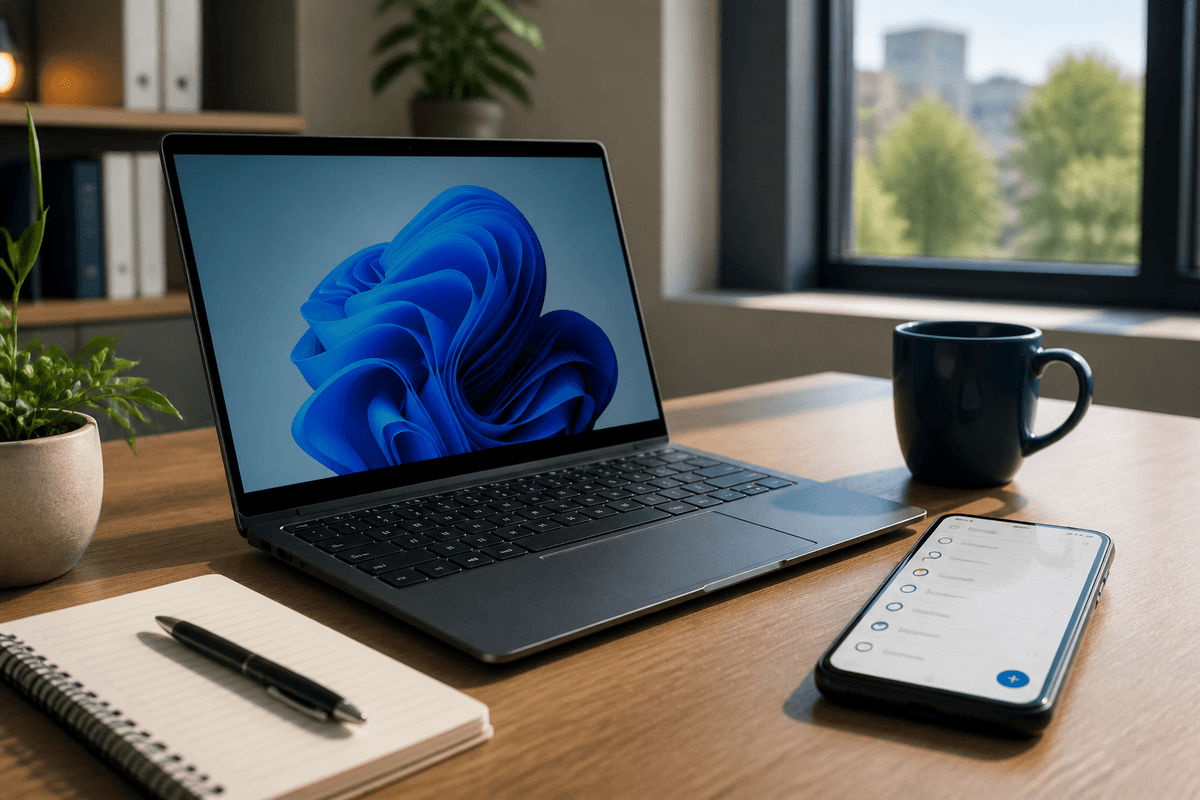
You search “best to-do app for Windows,” install the top pick, and it seems fine—until a normal week hits. The app that looked identical in screenshots starts missing the details you actually feel: a slow add box when you’re in a meeting, flaky notifications after sleep mode, clunky keyboard shortcuts, or sync that lags between your PC and phone.
That’s why “best for Windows” is a trap. Most lists reward feature counts and brand familiarity, not the everyday stuff that keeps you using the app. The annoying part is you usually discover those gaps only after you’ve moved your tasks over and built habits around it. The goal here is simpler: choose based on a few real situations you face daily.
When tasks show up mid‑work, how do you capture?
You’re writing a report, a message pops up, and you suddenly have three new tasks you can’t do yet. In that moment, capture speed matters more than fancy views. If adding a task takes two clicks, a slow load, or forces you to choose a project before you can type, you’ll postpone it—and then you’ll forget it or leave it in chat.
Test capture in the way you actually work on Windows: a global keyboard shortcut, an always-ready “quick add” box, and natural language entry (“Fri 3pm,” “every Monday”) if you rely on time cues. Also check what happens when the app is closed, your laptop just woke up, or you’re offline on campus Wi‑Fi. Some apps technically support quick add, but it lags after sleep or signs you out, which turns capture into a small interruption.
Once capture feels effortless, reminders are the next place where “nice” can become noisy.
Reminders and recurring tasks: helpful or noisy?
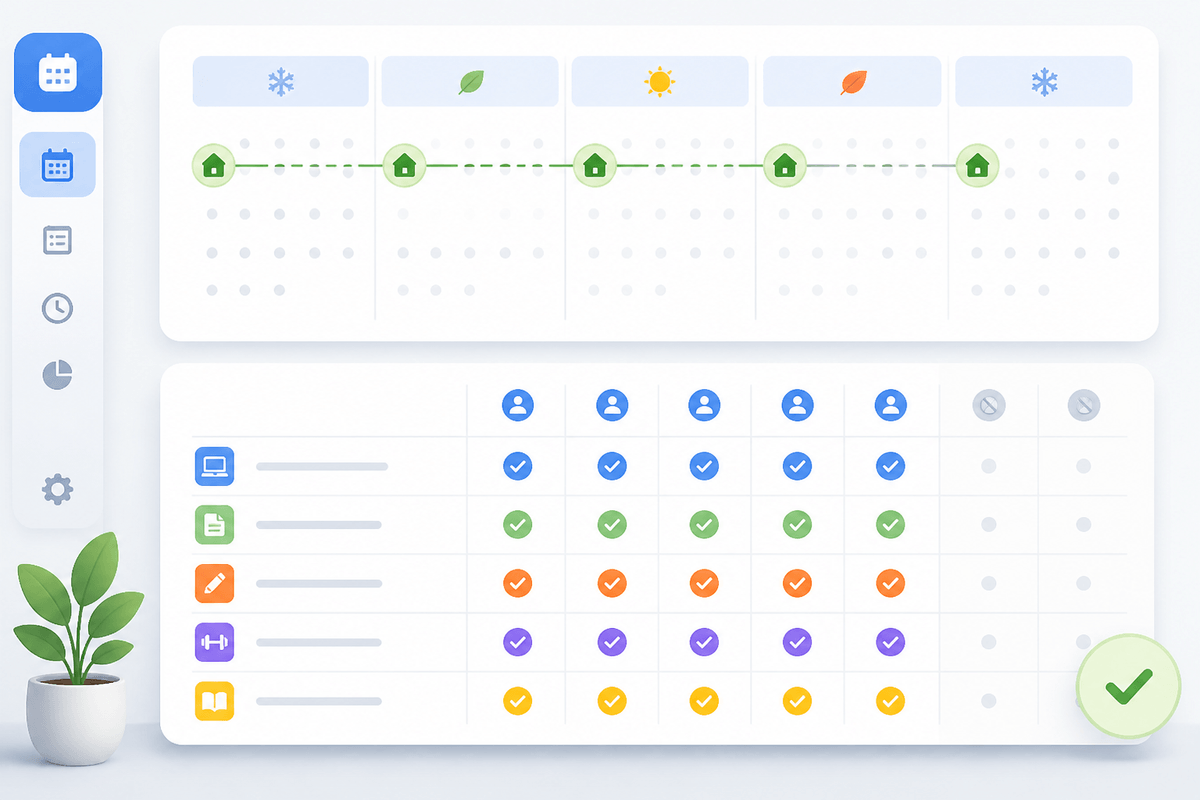
You set a reminder for one thing, then another, and within a week your day starts getting interrupted for items you already remember. That’s usually a sign the app makes it too easy to add reminders but too hard to tune them. Look for controls you’ll actually use: quiet hours, per-list defaults (only “Calls” gets alerts), and the ability to remind you once without auto-rescheduling forever.
Recurring tasks are where apps quietly differ. A “pay rent on the 1st” task should survive months without turning into duplicates, and “every weekday” should skip weekends without you babysitting it. Test what happens when you complete a recurring task late—does it create the next one from the original schedule or from the completion date? One choice keeps routines stable; the other slowly drifts.
There’s a cost: tighter reminder rules take a few minutes to set up, and some apps hide them behind paid tiers. If you can’t keep alerts calm, your list will grow faster than you trust it.
Your list gets long—do you need light project tracking?
A week into using any to-do app, the list stops feeling like “today” and starts looking like a backlog. You get a mix of quick errands, waiting-on replies, and multi-step work like “launch study group” or “finish the client deck.” If everything sits in one flat list, you’ll either keep re-reading the same items or you’ll start skipping past tasks that actually need a next step.
Light project tracking usually means three basics: group related tasks, see what’s next, and keep the project from polluting your daily view. On Windows, that can be as simple as lists/folders plus a way to pin one project to “Today,” or a basic board view where “To do / Doing / Done” lives inside a single project. If you often delegate or wait on approvals, also check for a “waiting” status, a tag, or at least an easy way to add a note like “sent 5/12.”
The real downside shows up fast: too much structure slows capture. If the app forces you to pick a project, add labels, and set dates just to jot “ask Sam for slides,” you’ll stop using it. The next pressure point is whether that structure still works when you’re away from Wi‑Fi and bouncing between devices.
Offline and cross‑device sync: where do you work?

You add tasks at your desk, then you’re on the bus, in a lecture hall, or walking into a meeting with shaky Wi‑Fi. That’s when “sync” stops being a checkbox and turns into a question: can you still see the list, edit it, and trust those edits to land everywhere later?
Start by mapping your real path: Windows laptop all day, Android or iPhone on the go, maybe a web tab at work where installs are blocked. If you’re often offline, test the basics: open the app in airplane mode, add three tasks, complete one, and change a due date. Then reconnect and confirm the same changes appear on your phone and on the Windows app without duplicates or conflicts. Some apps cache read-only data but won’t reliably write changes until you sign in again, which feels like “lost” work.
Also check what sync latency looks like in normal use. If tasks take minutes to show up across devices, you’ll start keeping “temporary” notes elsewhere, and that’s where your system splits right before email and calendar get involved.
Email and calendar friction shows up after week two
You flag an email you can’t answer yet, or you see a meeting on your calendar and think, “I should prep for that.” Two weeks in, this is where many to-do apps start to feel slow: the email lives in Outlook or Gmail, the task lives somewhere else, and you keep copying details by hand.
If you rely on email follow-ups, test the actual loop: can you turn an email into a task with a link back to the message, and does that link still work on Windows later? Some apps only support this cleanly inside Microsoft 365, while others fall back to “forward to a special address,” which works but strips context and clutters your sent mail. Also check whether tasks can hold attachments or just a plain URL—client docs and class files expose this quickly.
Calendar is similar. If you time-block, see whether due dates show on your calendar without creating junk events, and whether recurring tasks spam your day view. If it feels messy here, your one-week trial should include a real workweek with real meetings.
Make your shortlist and pick with a one‑week trial
By now you should have two or three apps that didn’t break on the basics. Keep the shortlist small, because the only way to choose quickly is to run them like you mean it. Pick one as your “main” for seven days, not an extra tab you check when you remember.
Use a simple trial script: capture five tasks mid‑work, run two recurring items, rely on reminders for one day, and push one small project through a few steps. Go offline once, and convert at least three real emails into tasks with working links back. The cost is a messy week—duplicates and re-entry happen—so don’t migrate everything until day seven makes you trust it.