Most Android Auto annoyances start small and repeat
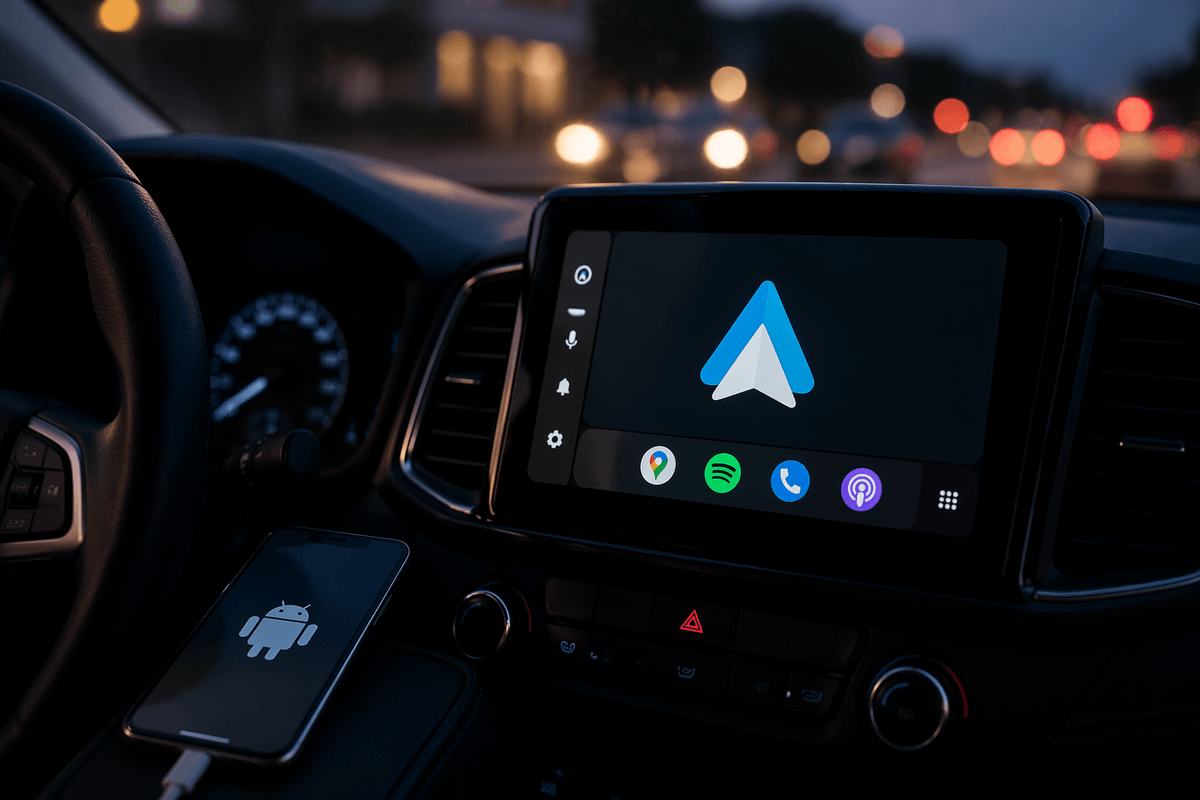
You notice it in the first few minutes of a normal drive. Music starts when you did not expect it. A message sound cuts in at the wrong moment. The home screen shows apps you never use, while the one you want takes an extra tap. None of this feels major on its own, which is why many people leave it alone for months.
The problem is repetition. A small irritation that happens twice a day turns into something you work around instead of fixing. Android Auto does offer useful controls, but some settings help only in certain cars, and a few can create new hassles if you change them blindly. The key is knowing which ones actually affect your routine.
Should Android Auto launch every time you drive?
You get in, plug in, and the screen jumps straight into Android Auto before you have decided what this trip is. That can feel fine on a commute. It is less helpful when you are backing out, moving the car a short distance, or letting someone else drive. If Android Auto launches every time, the setup is running on habit, not on your actual routine.
For many drivers, turning off automatic start makes the system feel quieter right away. You still open it when you want maps, calls, or music, but you stop triggering the full interface for a five-minute errand. The catch is that this adds one more tap, and that extra step can annoy you if you rely on navigation several times a day. This is one of the easiest settings to test for a week, and it leads straight to another common clue: needing to unlock your phone first.
If you unlock your phone first, something is off
You plug in, wait a second, and nothing useful happens until you wake the phone and unlock it. That usually points to a connection step that is not finishing cleanly, not a task you should have to do every drive. In a good setup, Android Auto should start from the car with little or no handling once you connect.
The fix is often simple: check whether the phone is set to start Android Auto only when unlocked, or whether wireless startup, USB behavior, or battery limits are getting in the way. If your car only works reliably after a manual unlock, the system is adding delay at the worst moment, right when you are pulling out or merging into traffic. Some people accept this because it feels minor. It is not. If basic startup is shaky, every other convenience setting sits on top of that weak point.
When audio restarts, is convenience worth the surprise?
You start the car, connect, and your last podcast or playlist begins before you have fully settled in. On some days that feels useful. On others, it is a jolt, especially if the volume was set for highway speed the night before. What sounds convenient in the driveway can feel abrupt in traffic.
This is where the resume-media setting earns a hard look. If you usually want audio to pick up where it left off, leave it on and save the tap. If you often switch between short trips, phone calls, school drop-off, or quiet drives, turning it off can make the cabin feel more controlled. The downside is obvious: every drive starts with one extra choice.
Test this one against your real week, not your ideal routine. If startup should feel calmer, the next place to look is the sound that breaks that calm most often: message alerts.
Those message chimes are not as harmless as they seem
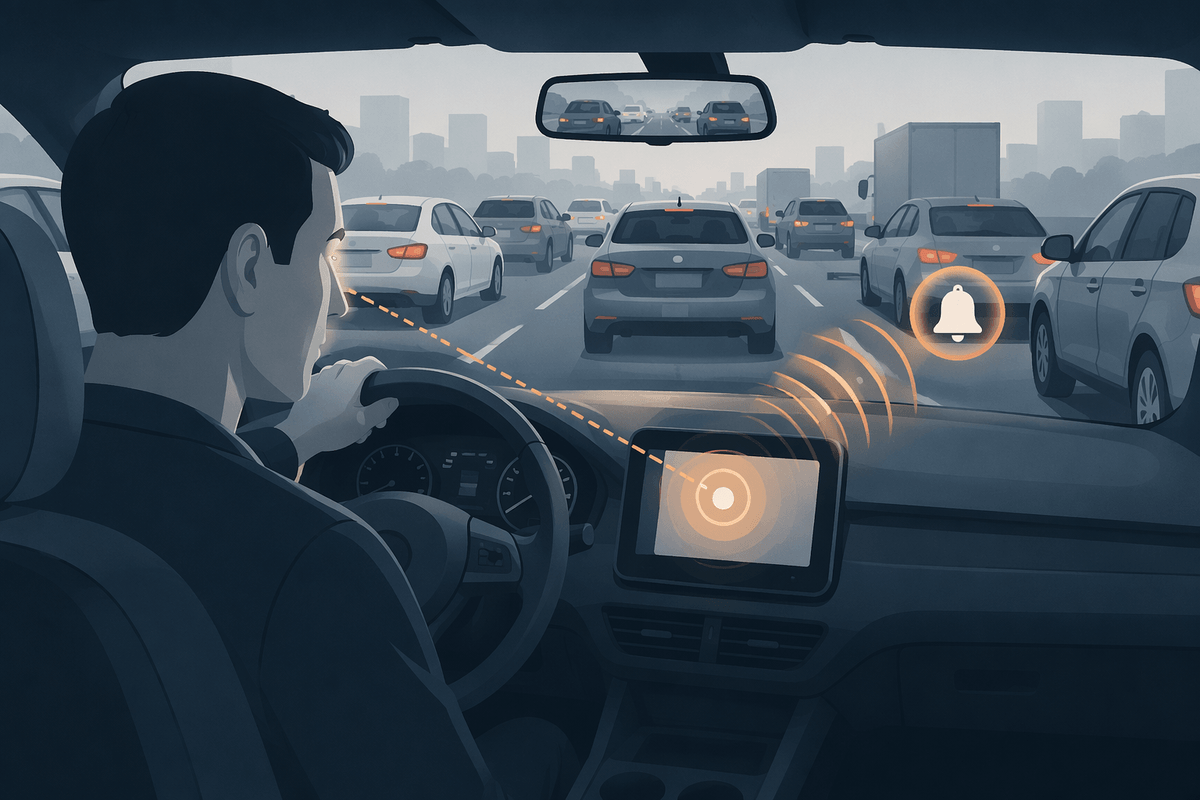
You hear a message chime while changing lanes, and your attention shifts before you even decide whether the message matters. That is the real issue. The sound feels small, but it creates a reflex. You glance at the screen, wait for a preview, or start wondering who sent it. On a quiet road that may seem manageable. In stop-and-go traffic, it adds one more interruption at exactly the wrong time.
Turning off message notifications in Android Auto often makes the car feel calmer faster than people expect. You still get the message on your phone later, but you stop inviting every text into the cabin in real time. The obvious downside is that you may miss something time-sensitive unless you rely on voice replies or a passenger checks for you. If alerts keep pulling your eyes and thoughts forward, the next setting to question is whether message previews should appear on screen at all.
Do you want previews on screen at all?
A text comes in, and a few words flash on the display. That sounds useful until the preview shows just enough to pull you in without giving you anything you can act on safely. A half-read message often creates more mental noise than a simple alert because your brain starts filling in the rest while you are still driving.
If you rarely need to screen messages in real time, turning off on-screen previews is usually the cleaner choice. You keep the cabin quieter and remove one more reason to look over. This matters most in dense traffic, at night, or on roads you already know well enough that you are not checking maps every minute.
The cost is straightforward. If a message is genuinely urgent, you will not know that from a quick glance. For many people, that is still the better deal. Once messages stop taking up space on the screen, the next question gets simpler: which apps have actually earned a place there?
Which apps deserve room on your home screen?
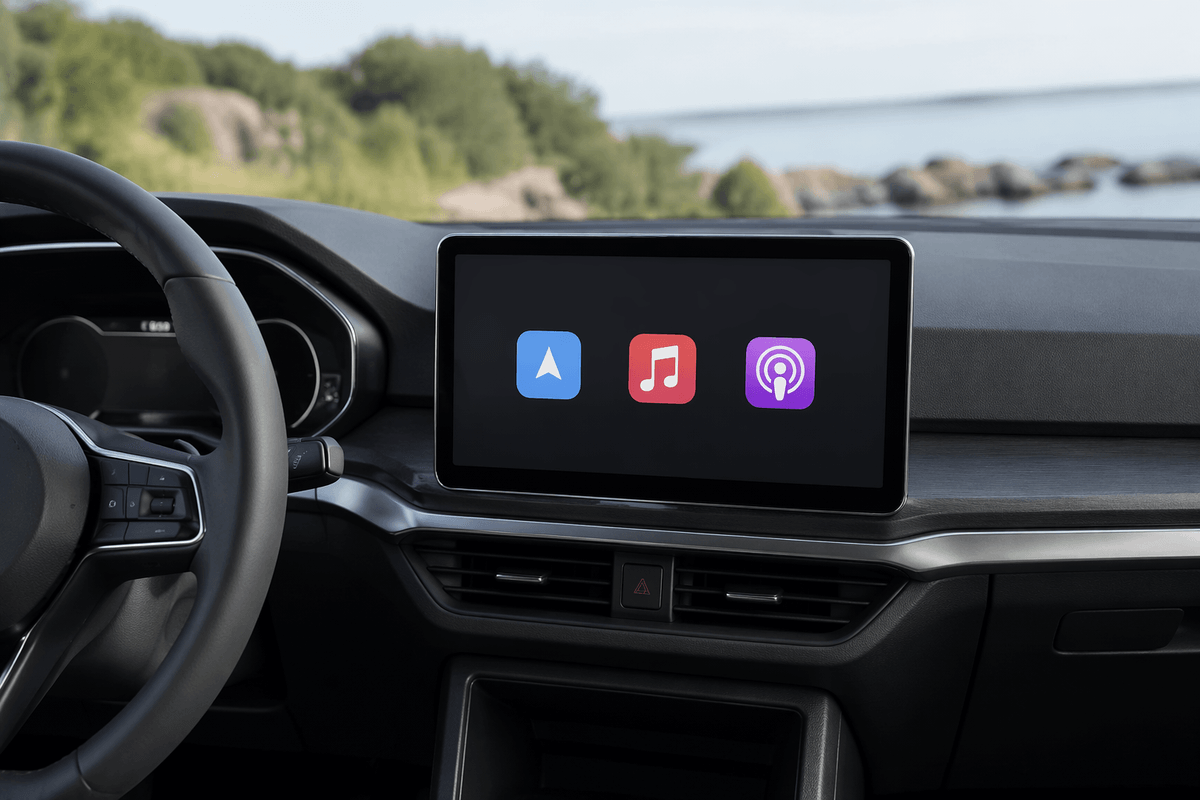
You feel the difference the first time the home screen shows two or three apps you actually use instead of a grid full of leftovers. If you open Maps, one music app, and maybe Podcasts every week, those should stay. If you never tap YouTube Music, Calendar, or a parking app in the car, let them go. A shorter list cuts hesitation. You are not scanning while waiting at a light or reaching for the wrong icon on a rough road.
This setting is worth being strict about. Keep the apps you trust to work quickly in your car and remove the ones that only seem useful in theory. The catch is that a very lean setup can backfire if you share the car, switch audio apps often, or use different tools on weekends than on workdays. Leave just enough room for your real routine, not your ideal one.
Once the screen shows fewer choices, the last step is simple: keep the changes that still feel better after ordinary use.
Pick the changes that feel calmer after a week
After a few normal drives, the right settings stop calling attention to themselves. You plug in, the screen behaves, and fewer sounds or prompts compete for your focus. That is the test. Keep the changes that make the car feel quieter and more predictable on a rushed weekday, not just on a careful trial run.
If a setting solves one annoyance but creates a new one every other day, roll it back. An extra tap may be fine. A startup failure, missing app, or delayed connection usually is not. Treat Android Auto like a workbench: keep only what earns its place through repeated use. The best setup is not the one with the most tweaks. It is the one you stop noticing.