Why Amazon passkeys feel worth trying now
You probably know the routine: type a password, wait for a text or email code, then repeat it again when Amazon decides the device looks new. It works, but it breaks your pace and leaves more chances for trouble if your password gets reused, guessed, or stolen in a data leak. A passkey cuts out much of that hassle by letting your phone or computer confirm it is really you with Face ID, a fingerprint, or your device PIN.
That makes sign-in feel simpler, but the setup still gives people pause. Amazon does not put the option front and center, and the screens can look different depending on the device you use. That uncertainty is usually the real hurdle.
Where Amazon hides the passkey option
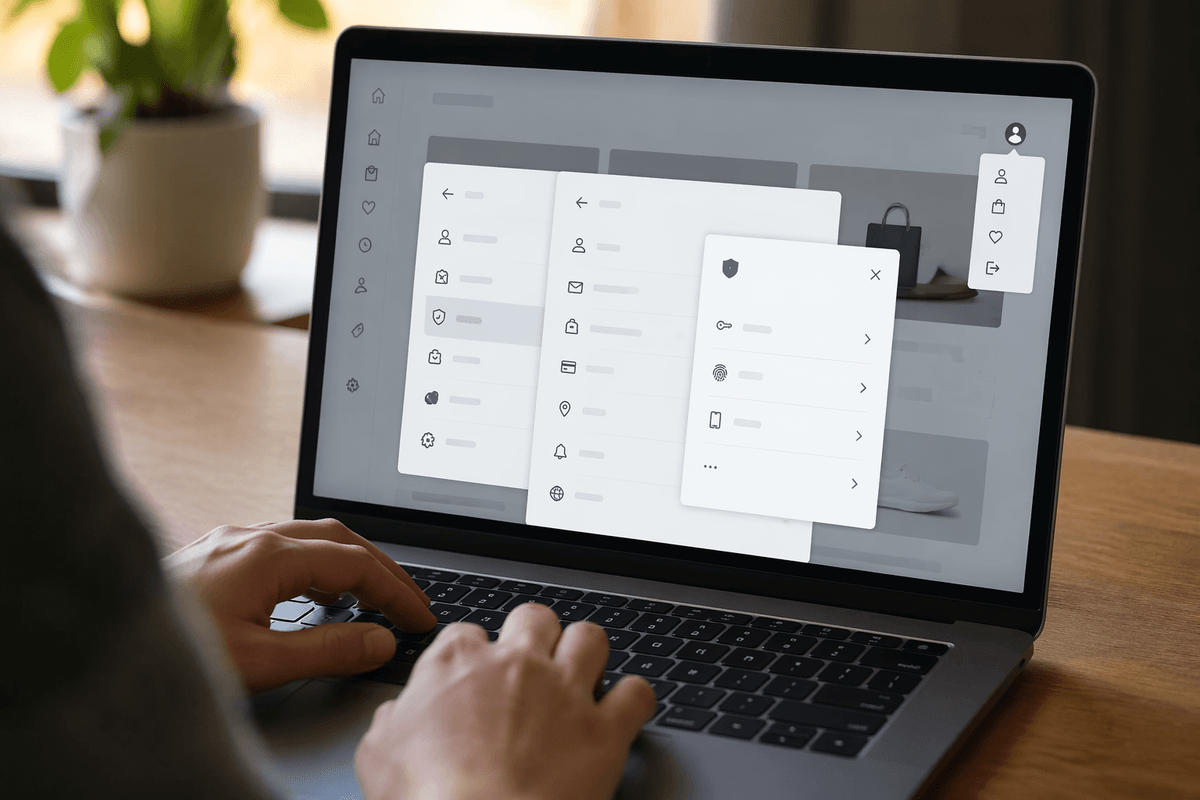
The usual snag is simple: you sign in, open Account, and the passkey setting is not sitting in plain view. On Amazon, it is usually tucked under your login and security settings rather than the main shopping menus. If you are on the website, go to Account, then Login & security. If you are in the app, look for Your Account, then the sign-in or security area tied to your password.
Once you are there, scan for language like Set up a passkey, Create passkey, or Add a passkey. The exact label can shift a little by device, and that is where people second-guess themselves. If you do not see it right away, you may need to re-enter your password first before Amazon shows the option.
That small detour matters, because the device you use here shapes what the next setup prompt looks like.
Phone or computer: which device should create it
If you usually shop on your phone and it already unlocks with Face ID, fingerprint, or a screen PIN, start there. The setup tends to feel more direct because the phone already handles those checks every day. If your main Amazon use happens on a laptop or desktop you trust, creating the passkey there can work just as well, especially if that computer has Windows Hello, Touch ID, or another built-in sign-in method.
The better choice is usually the device you use most and control yourself. That matters more than picking the “best” platform. A shared family computer or a work machine can create confusion later, especially if browser profiles change, company settings block features, or someone else also uses the same login session. Phones are often the safer bet because they stay with you and usually back up passkeys through Apple, Google, or a password manager. What matters is picking the device you are least likely to lose access to, because that makes the next prompt feel routine instead of risky.
What the prompts usually look like on screen
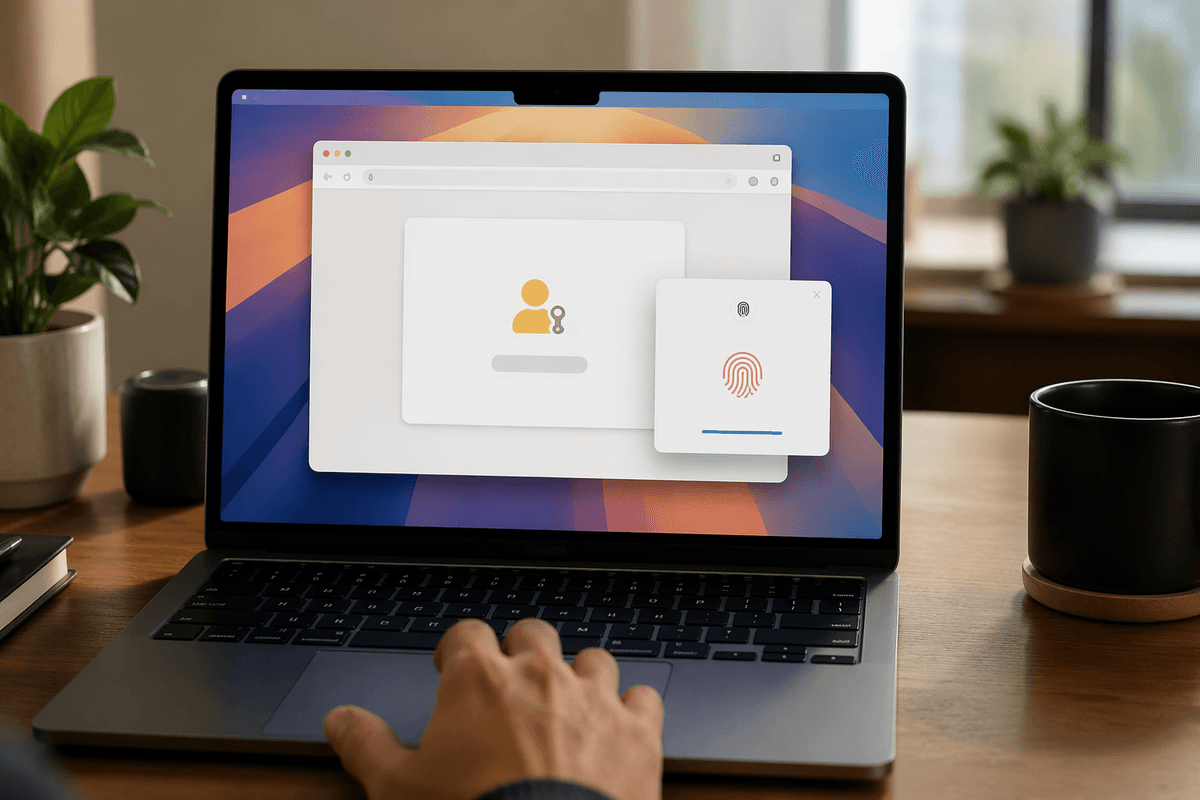
You tap Create passkey, and the next screen usually looks more familiar than people expect. Amazon may first ask for your password again. After that, your device takes over. On an iPhone or iPad, you will usually see a small system box asking if you want to save a passkey, then Face ID, Touch ID, or your device passcode. On Android, the prompt often asks you to create or save a passkey with your fingerprint, face unlock, or screen lock. On a computer, you may get a browser pop-up followed by Windows Hello, Touch ID, or your Mac password.
The wording can vary, but the pattern stays about the same: Amazon starts the request, then your phone, browser, or computer shows the approval step. That handoff is the part that throws people off. It can feel like you got pushed out of Amazon, when really the device is just confirming it is you.
If nothing appears, the usual causes are simple: pop-ups are blocked, the browser is outdated, or the device does not have a screen lock turned on. Once this prompt works once, the bigger question becomes what happens when you change devices later.
If you switch phones or browsers later
You get a new phone, replace a laptop, or open Amazon in a browser you do not normally use, and the sign-in may not look exactly the same. That does not usually mean your passkey is gone. In many cases, the passkey comes back automatically if it was saved in your Apple, Google, or password manager account and the new device is signed into that same account. You may just approve with Face ID, fingerprint, or your device PIN again.
The rough spots show up when the new device is not fully set up yet. If screen lock is off, sync is disabled, or you switched from one ecosystem to another, Amazon may fall back to your password and another verification step. That is normal, but it can slow you down when you are trying to sign in quickly after unboxing a new phone or reinstalling a browser.
Before you trade in an old device, make sure you still have your password, a backup sign-in method, and access to the email or phone number on the account. That matters even more when you need to sign in somewhere that is not really yours.
Signing in on shared or unfamiliar devices
You are most likely to notice the difference when you try to sign in on a hotel computer, a work laptop, or a family device that is not part of your normal setup. In that case, Amazon may still offer the passkey, but the approval step often happens on your phone rather than on that computer. You might see a QR code or a prompt asking you to use a nearby device. You scan it, approve with Face ID, fingerprint, or your phone PIN, and the shared machine gets access without storing your usual sign-in secret there.
That is the safer pattern to aim for. It reduces the chance of leaving a saved password behind in someone else’s browser. Still, it is not always smooth. If Bluetooth is off, the browser is old, the phone and computer are not close enough, or the device blocks pop-ups, the passkey flow can stall. When that happens, do not keep forcing it on a machine you do not trust. Use your own phone if possible, or sign out fully and avoid saving anything in the browser.
Once you get back to your usual device, the process becomes much more direct.
After setup, what changes the next time
On your own phone or computer, the next sign-in usually gets shorter. Instead of typing a password and waiting for a code, Amazon may prompt you to use your passkey right away, or after you enter your email. You approve with Face ID, a fingerprint, or your device PIN, and you are in. That is the main change: the check happens on the device you already trust, not through a password you have to remember.
It still helps to think of passkeys as your default route, not your only route. Some sign-ins will fall back to your password, especially after a browser reset, a cleared device, or a security check. Keep that backup available, but expect the normal path to feel faster and less fussy.