You see something interesting and want an answer now
You’re walking past a plant, a strange gadget, or a building plaque, and the usual routine feels too slow. Taking a photo, opening the browser, and guessing the right search words works, but it breaks the moment. Most people want something simpler: point the phone, get a useful answer, keep moving.
That sounds easy until you try it in real life. Some things are clear and easy to spot. Others sit behind glass, move, reflect light, or look too generic to name with confidence. A cereal box on a store shelf is not the same kind of target as a landmark across the street. Before speed matters, access matters. You need to know where Visual Intelligence actually lives and what kind of question it handles well.
So where does Visual Intelligence actually open?
What throws people off is that Visual Intelligence does not live in a normal app icon. On supported iPhones, it usually opens from a hardware shortcut. If your phone has Camera Control, press and hold it. On models that support Apple Intelligence without Camera Control, Apple says you can reach Visual Intelligence through a customized Action button, the Lock Screen, or Control Center. That matters because many people go looking for it on the Home Screen and assume it is missing when nothing obvious appears.
In practice, the fastest test is simple: stand in front of something easy to identify and open it with the button you already use most. If nothing happens, the usual problem is setup, not your aim. Apple notes that Visual Intelligence depends on a compatible iPhone, current software, and Apple Intelligence being turned on, so an older model or unfinished setup can stop you before you even point the camera. Once it opens reliably, the real question becomes what it handles well.
What should you point it at first?
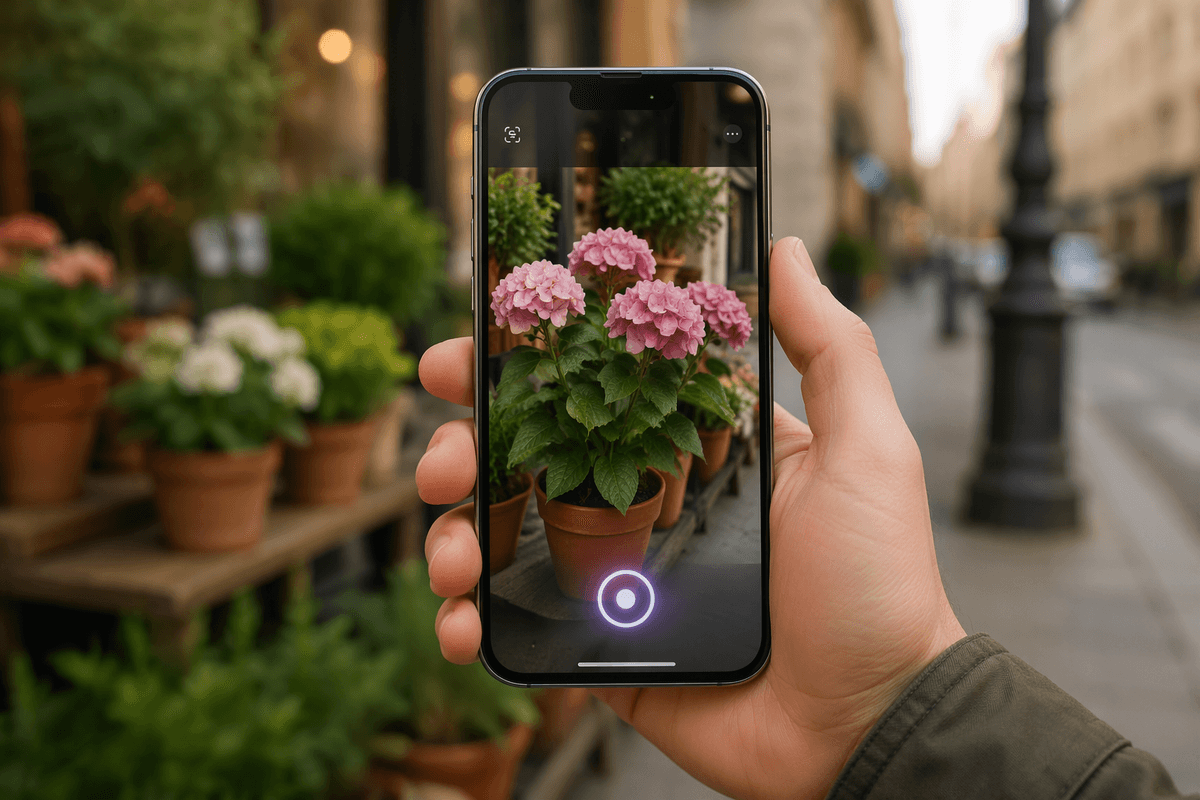
The easiest win is a single, clear subject that fills most of the frame. A plant on a patio, a dog standing still, a statue in daylight, or a product with a readable label gives Visual Intelligence the best chance to return something useful fast. If the object has a clean outline or obvious text, results usually come quicker. If it is tiny, partly blocked, or mixed into a messy background, the answer often gets weaker or too broad to help.
Start with things that stay put for a second. Pointing at a coffee bag, a sign, or a landmark is usually more productive than trying to catch a bird in motion or a glossy item behind store lighting. Distance matters too. If you have to zoom a lot, detail drops and the guess can drift. A good first habit is simple: move closer, steady the phone, and let the camera see one main thing before you expect a solid result.
Plants, pets, and landmarks don’t behave the same

A potted plant on a windowsill, a dog at the park, and a church across the street may all look like simple identification jobs, but they ask different things from the camera. Plants often work best when the leaves, flowers, or overall shape fill the frame. If you point at a single leaf in dim light, the result may stay broad. Pets are less predictable because they move, turn away, or blend into the background, so you may get a general breed group instead of a clean match.
Landmarks usually depend less on fine detail and more on the whole scene. That helps when the building is large and unobstructed, but it hurts when scaffolding, trees, or bad weather hide the main features. Distance can also flatten what makes a place distinct. In real use, this means you should change your approach by subject: get closer for plants, wait for stillness with pets, and step back enough to capture the full structure of a landmark. Store shelves create a different kind of problem.
A store shelf asks for different expectations
In a store, the hard part is rarely seeing the item. It is choosing which item the camera should care about. A shelf packs in lookalike boxes, price tags, sale stickers, and shiny packaging, so Visual Intelligence may lock onto the wrong product or give you a broad shopping result instead of a clear identification. If you want a useful answer, isolate one package, get the front label square in the frame, and let readable text do some of the work.
This is also where expectations need to shift. Visual Intelligence can help you recognize a product, compare what something appears to be, or pull up quick details, but it will not reliably settle the questions people often have in a store. Think ingredients, fit with a dietary rule, or whether one version differs from the nearly identical box beside it. Similar packaging causes misses fast.
When the shelf is crowded, the best move is often to treat Visual Intelligence as a quick filter, then switch to a more direct tool for the fine print.
Sometimes the answer is slow, vague, or missing
You notice it most when the target looks clear to you but not to the camera. A plain ceramic mug, a generic office chair, or a half-hidden plant can leave Visual Intelligence hanging for a few seconds, then return something broad like a category instead of a useful name. That usually happens when the object lacks strong visual cues, the lighting is flat, or the frame includes too many competing details.
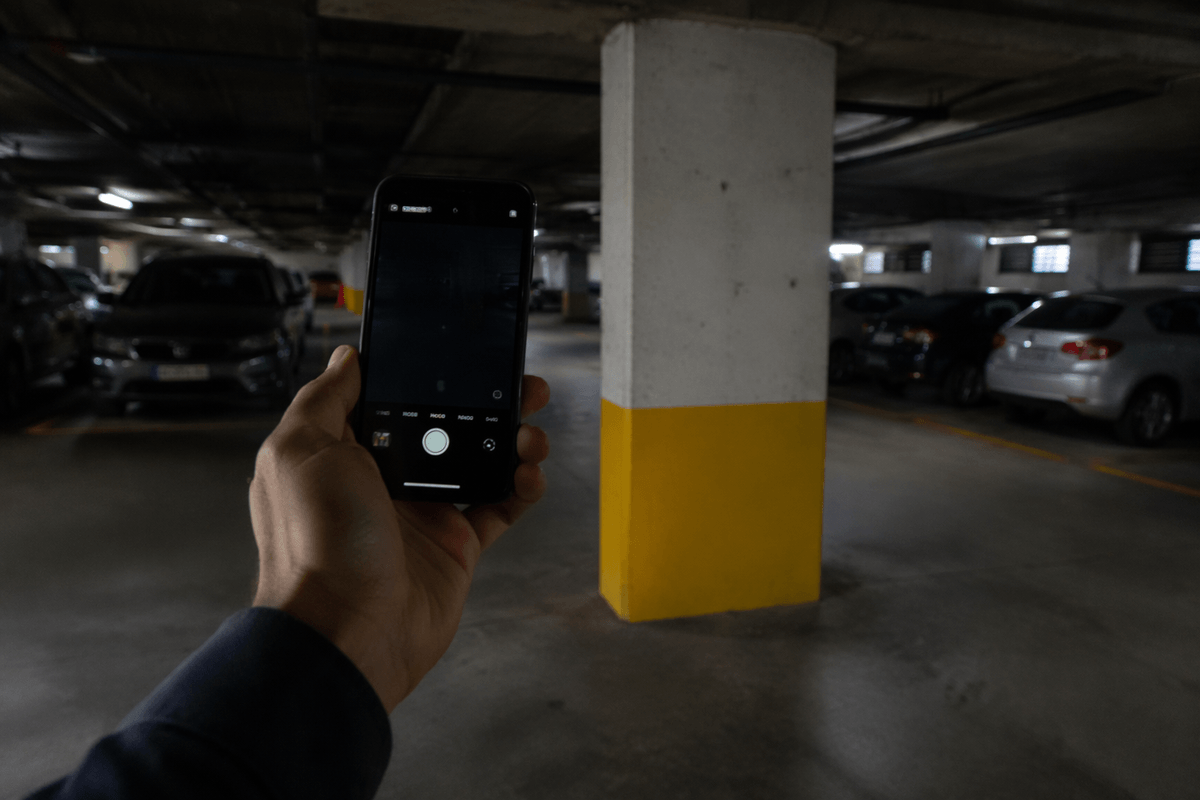
Network conditions can slow things down too. In a parking garage, a large store, or on a weak cellular signal, results may take long enough that the shortcut stops feeling faster than snapping a photo and checking later. Some misses are simpler than that: glare on plastic, motion blur, or a subject that is too common-looking to separate from hundreds of similar items.
When that happens, do not keep forcing the same shot. Change one thing. Step closer, shift the angle, center one object, or wait for better light. If the answer still comes back thin, that is your cue to switch tools instead of burning more time.
When another iPhone tool will save more time
If you are standing in a grocery aisle trying to read ingredients, compare sizes, or check whether two nearly identical boxes are the same, Visual Intelligence is usually not the fastest path. Open the Camera for a quick photo you can zoom, or use Live Text if the real job is pulling words off the package. The same pattern shows up with signs, menus, and printed instructions. When the question is mostly text, use the text tool.
Photos helps in a different way. If you already snapped the picture, swiping around between tools wastes time. Search from the photo, copy text from it, or zoom into details there instead of reopening the camera and starting over. Maps is often quicker for places too. If you already know you are looking at a business, museum, or street location, a place tool beats an object tool.
The useful habit is simple: match the tool to the question, not just the camera view. That is what keeps Visual Intelligence useful without asking it to do every job.
Use it as a first look, not final proof
That mindset keeps the feature useful. Treat Visual Intelligence like a fast first pass: good for naming what you are looking at, narrowing options, and deciding what to check next. If it spots a plant, a product, or a landmark in seconds, you have saved yourself the slow part. If the result affects a purchase, safety, or care decision, stop there and verify it with the label, the seller, Maps, or a trusted source.
The practical shift is simple: use it to get oriented, not to close the case. That keeps you quick in everyday moments and careful when the details actually matter.