You keep rebuilding the same report every week
Most weeks start the same way: you download an export, paste it into a workbook, then spend the next hour fixing what “always” breaks. Dates come in as text, columns shift, totals stop matching, and the report layout needs another round of nudging so it looks presentable again.
The frustrating part is that the work feels small—until you add it up. Ten minutes to clean headers, five to split names, fifteen to rebuild a pivot, another ten to reapply the same filters and formatting. It’s also fragile. One extra column in the export can throw off formulas or make a copy/paste land in the wrong place.
The way out starts with a simple distinction: what you do every single week versus what you fixed once because something was weird. That split determines whether you need faster worksheet habits, a refreshable import, or a more “sticky” report structure.
Which steps are truly repetitive versus “one-off” fixes?

You usually don’t notice the difference until you try to speed it up: some steps repeat because the export is always messy, and others only happen because last week’s file was odd. Start by taking one refresh and listing every action you touch—rename headers, convert dates, remove blanks, rebuild pivots, reapply filters, fix formulas, reformat. Then mark each item as “I do this every time” or “I did this because something changed.” If you can’t predict it, it’s not a good candidate for rigid automation.
Be honest about the hidden “one-off” work. A new product line adds a column. A salesperson types “N/A” into a numeric field. A region name changes. Those aren’t reasons to give up; they’re a sign you need a step that can tolerate change, or a guardrail that flags it fast. That decision is what separates cleanup pain from rebuild pain.
Is your pain mostly cleanup, or rebuilding the structure?
You open the export and immediately start “making it usable.” If most of your time goes to trimming blanks, converting text-to-dates, splitting a combined field, standardizing names, and deleting stray header rows, that’s cleanup pain. The layout you want is basically fine; the input is noisy. This is the kind of work where repeatable steps matter more than clever formulas.
Rebuild pain looks different. You aren’t just fixing the data—you’re reconstructing the report: recreating the pivot because the range changed, re-pointing charts, repairing broken lookups, reapplying the same slicers, and redoing the final summary table. If you keep touching “structure,” you need a setup that survives extra columns and new categories without shifting everything.
Quick test: time one refresh. If you spend more minutes preparing the raw table than repairing the report, lean into cleanup speed-ups; if it’s the opposite, focus on a refreshable pipeline and a sturdier layout.
Hidden speed-ups for cleanup inside a normal worksheet
You paste the new export in, and the same little fixes start piling up: numbers stored as text, extra spaces, odd casing, “N/A” mixed into numeric columns, and a few blank rows that throw off sorts and pivots. When the layout is fine and the input is just noisy, you can often cut the cleanup time in half with built-in worksheet tools—no new system, no rebuild.
Turn on a few fast moves you can repeat: use Flash Fill to split or recombine fields once you show Excel the pattern; use TRIM/CLEAN (or Paste Special > Values after you apply them) when exports come with invisible junk; use Text to Columns to force dates and IDs into the right type; and use Remove Duplicates and Filter to isolate “bad” rows quickly. If the same fix keeps coming back, record it as a tiny macro—but keep it limited to formatting and cleanup clicks, because macros can break when columns move.
If you still have to do the exact same cleanup sequence every week, that’s usually the point where a normal worksheet starts hitting its ceiling—and a refreshable import becomes the safer path.
Power Query: when you want refresh, not rework
You pull the export, paste it in, and immediately start doing the same ten cleanup moves in the same order. That’s the moment Power Query earns its keep: it lets you turn those moves into a repeatable “recipe” that runs again on the next file, so refresh means clicking Refresh, not redoing steps by hand.
A practical setup is simple: load the export with Data > Get Data, then apply the exact fixes you already do—remove top rows, promote headers, trim spaces, change data types, split columns, replace “N/A” with blanks, filter out junk rows. When next week’s file arrives, you drop it in the same folder (or overwrite the same filename) and refresh. Your report can point to the query output table, which stays consistent even if the raw file is ugly.
Power Query isn’t magic. If the source keeps renaming columns or sometimes deletes them, your query can fail and you’ll need to adjust a step. Start with one export you trust, and keep the transformations focused on the repeatable cleanup before you build more on top of it.
Once the cleaned table refreshes reliably, the next bottleneck is usually the weekly summary you rebuild on top of it.
If you summarize it weekly, stop rebuilding the summary
You refresh the cleaned table, then immediately start rebuilding the “top-line” view: totals by week, by region, by rep, maybe a quick variance versus last week. It feels fast until you realize you’re redoing the same grouping, sorting, and “show me the top 10” logic every time.
Lock the summary to something that refreshes with the data. A PivotTable is the simplest: build it once off the query output (or an Excel Table), add the fields you always use, then right-click Refresh. If you need a fixed-looking dashboard table, use GETPIVOTDATA to pull specific pivot results into a clean layout that won’t shift when new categories appear.
One real snag: pivots don’t guess new categories the way you expect. New regions can land under “(blank),” and calculated fields can behave differently after a refresh. Plan a 30-second “check row” in the summary so you catch surprises before you send it.
When formulas keep snapping, switch to more resilient patterns
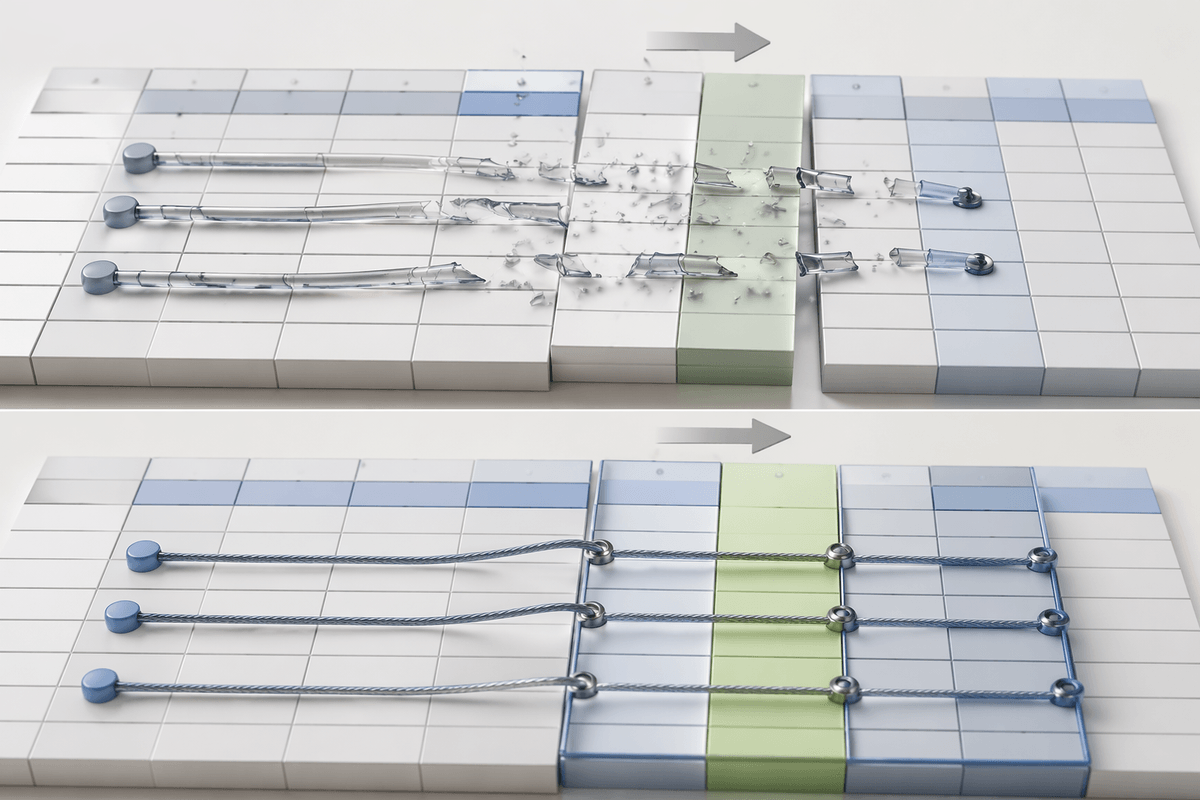
You’ve done the cleanup and the pivot refresh, but the workbook still feels brittle: one new column appears, a blank shows up where you expected a number, and suddenly your lookups return #N/A or your totals quietly drop rows. That’s usually a formula pattern problem, not a data problem. The fix is to anchor formulas to things that don’t move and to handle “missing” cases on purpose.
Start with ranges: convert sources to an Excel Table (Ctrl+T) and point formulas at structured references so new rows get included automatically. For lookups, prefer XLOOKUP over VLOOKUP/HLOOKUP so you aren’t hard-coding a column number that breaks when someone inserts a field. For multi-criteria pulls, use SUMIFS/COUNTIFS instead of a patchwork of helper columns. Wrap risky pulls with IFERROR (or a clearer IFNA) so a missing key shows a controlled blank or “Check” instead of blowing up a whole block.
One real downside: more resilient formulas can be harder to read when you inherit the file later, especially with nested logic. That’s where the layout matters—because the next step is making the report harder to accidentally break.
Make the report “stick” with reusable layout and guardrails
You finish the refresh, the numbers tie out, and then someone inserts a row for a note, drags a column “just for this week,” or pastes over a formula block. The report still works—until it doesn’t. A sticky report assumes those things will happen and makes them harder to do by accident.
Start by separating inputs, calculations, and outputs. Keep raw/query tables on one sheet, keep formulas on another, and keep the “send this” view on a third. Use Excel Tables so ranges expand, then lock the layout: freeze panes, keep headers consistent, and use named ranges for key cells (like “AsOfDate”) so charts and formulas don’t rely on “B2.” Protect the output sheet, but only allow the cells people should touch.
Add small guardrails that fail loudly: a row count check, a total-to-total tie-out, and conditional formatting that flags blanks where you expect values. These take a few minutes to build, but the cost is real: you’ll need to decide who can edit what, and you may field “why can’t I type here?” questions. Once the layout stops drifting, you can map your weekly refresh into a simple routine you can follow every time.
Your weekly refresh routine, mapped from task to tool
Most Monday mornings, the same question decides how long you’ll be stuck: did the source change, or is it just the usual mess? If it’s the usual mess, use a worksheet tool you can repeat fast (Text to Columns, TRIM/CLEAN, filters), or push it into Power Query so “fix it” becomes “refresh it.” If your summary is the repeatable part, build it once with a PivotTable and pull the final numbers with GETPIVOTDATA.
If formulas are what keep breaking, anchor them to Excel Tables and use XLOOKUP, then add a simple IFNA/IFERROR that shows “Check” instead of hiding problems. Finish each refresh with three guardrails: row count, a tie-out total, and one quick scan for new blanks or new categories. The hard part is discipline: skipping the checks saves 30 seconds and can cost you an hour later.