When everyday lag starts changing how you use it
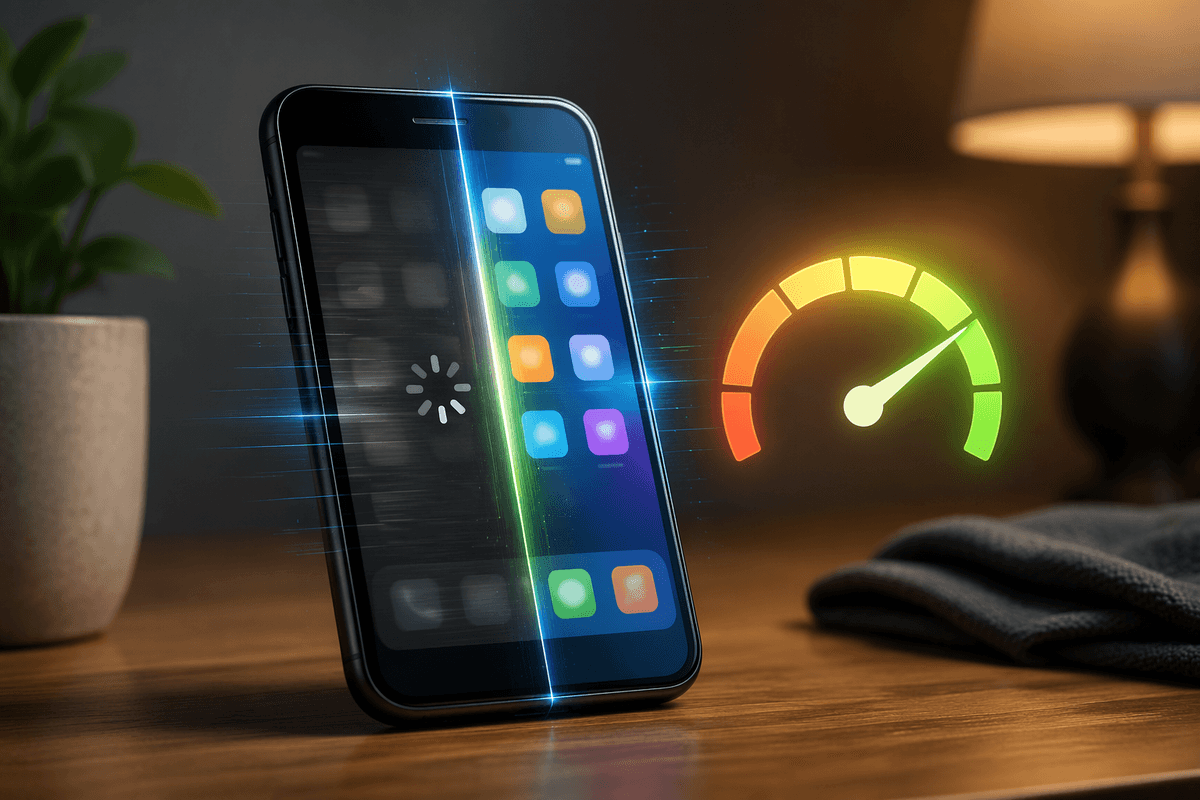
You usually notice it in small moments first. The screen wakes, but unlocking takes an extra beat. The keyboard trails behind your thumbs. You stop opening the camera unless the shot can wait. After a while, you change your habits to avoid the delay. That is the real sign the phone is no longer just “a little old.” It is starting to shape what you do, what you skip, and how much patience basic tasks now require.
That does not always mean the phone is finished. Older phones often slow down for reasons that look the same from the outside but need different fixes. A packed storage bar, a bad app, background work, or worn battery behavior can all produce the same everyday drag. The hard part is that random tips waste time fast, especially when they make the phone harder to live with.
Is the slowdown constant or does it come in waves?

A useful clue is timing. If the phone feels slow all day, every day, the cause is often something broad like low free storage, aging hardware, or a battery that can no longer support short bursts of speed. You feel it everywhere: unlock, typing, app switching, camera launch. The delay becomes the normal state.
If it comes in waves, look for background work. A phone can crawl for twenty minutes after a restart, during app updates, photo backup, indexing, or a big system sync. It may also bog down when one app misbehaves and keeps the processor busy or chews through memory in the background. That pattern matters because the fix is different. Constant lag pushes you toward cleanup and hard limits. On-and-off lag points you toward what the phone is doing at that moment, which is the next place to check.
A nearly full phone can mimic a dying one
A common pattern is this: the phone is worst when you try to install an update, save a video, open the camera, or switch back to an app you used a minute ago. That often points to storage, not a ruined phone. When free space gets too low, the system has less room for temporary files, updates, cached data, and routine background tasks. Everything starts to stall because basic housekeeping now competes with what you are trying to do.
This gets missed because the symptoms look dramatic. Apps reload instead of reopening where you left them. Photos take longer to process. Even typing can hitch if the phone keeps clearing and rebuilding working space. On many older phones, “a little space left” is not enough. If you are under roughly 10 to 15 percent free, cleanup is worth trying before anything bigger.
Start with the heavy stuff you can replace or remove: downloaded video, duplicate photos, offline maps, huge chat attachments, and apps you have not opened in months. Then test the phone again, because if storage is not the main issue, one app often is.
Maybe it is not the phone, but one bad app
You clear space, the phone improves a little, then the lag comes back after you open the same app. That is a strong clue. One bad app can make an older phone feel worn out by keeping the processor busy, leaking memory, hammering location services, or constantly syncing in the background. Social apps, shopping apps, keyboards, launchers, and anything stuffed with ads are common offenders.
The easiest test is practical, not technical. Think about when the slowdown starts. If typing drags only after one app has been open, or the phone heats up and battery drops fast after using it, force close that app and see if the phone settles down within a few minutes. Then update it, clear its cache if your phone allows it, or uninstall and reinstall it. On iPhone, offloading or deleting and reinstalling can serve the same purpose.
If the problem keeps returning, remove the app for a few days. That is inconvenient, but it is faster than blaming the whole phone when the real issue is one bad actor.
Which settings actually help without making the phone miserable?
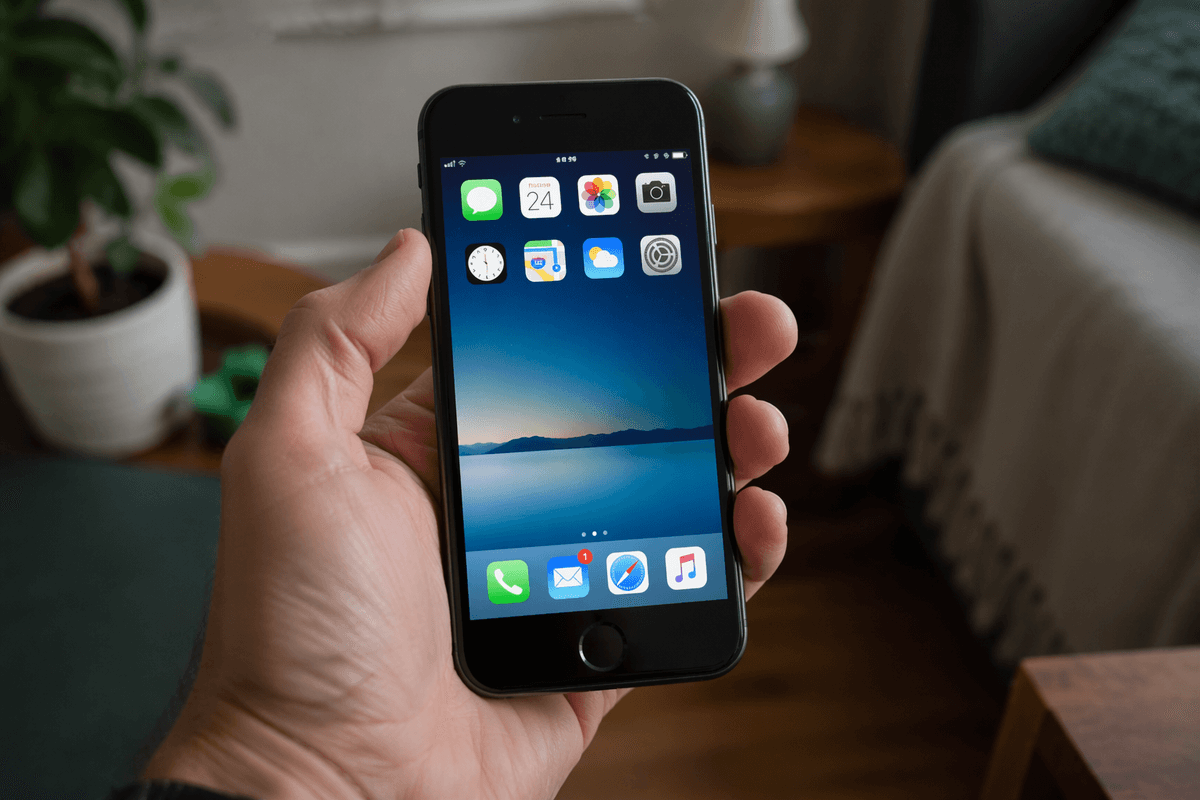
Once an app is not the main problem, settings can buy back some speed, but only a few are worth the annoyance. The safest wins are the ones that cut background work without stripping the phone bare. Reduce or turn off widgets you do not use, limit app background refresh for nonessential apps, and stop constant photo backup on mobile data if it runs all day. On Android, turning off RAM expansion can help on some slower phones because it leans on already-slow storage. On either platform, fewer live wallpapers, fewer always-on feeds, and fewer location permissions usually make daily use steadier.
Be careful with “performance” advice that makes the phone unpleasant. Killing every app, turning off all notifications, dropping screen timeout to a few seconds, or forcing battery saver on all day often saves little and adds hassle fast. Battery saver is useful when you need it, but on an older phone it can also throttle performance. Aim for settings you can live with for weeks, because the next test is whether core actions still lag even after the easy fixes.
When unlock, typing, and camera launch still drag
You notice it after the easy cleanup: the home screen still hesitates after unlock, the keyboard falls behind for a second or two, and the camera misses that quick moment because it opens too slowly. That pattern usually points away from simple clutter and toward the phone’s core limits. If lag shows up in actions the system itself handles, the processor, memory, storage speed, or battery behavior may be holding the whole device back, not just one app.
Run a plain test. Restart the phone, wait a few minutes, then try three things in a row: unlock it, open the camera from the lock screen, and type a short message in the default keyboard. If those still drag before you install anything, the problem is likely deeper. On older phones, worn batteries can also reduce short bursts of speed. You may not see random shutdowns, but the phone can still feel flat and slow.
At that point, stop expecting settings to create a big turnaround. Small tweaks may steady the phone, but they will not make core lag disappear. The only remaining question is whether a full reset changes enough to justify the trouble.
Would a factory reset rescue it or waste your time?
A reset helps in a specific kind of situation: the phone has grown slow over time, but the hardware still feels basically stable. If a clean restart gives you a brief window where unlock, typing, and the camera feel better, a factory reset can sometimes extend that clean state. It strips out years of leftover app data, broken settings, bloated caches, and background clutter that normal cleanup misses.
It is not a magic repair. If the phone is still sluggish right after setup, before you reload all your apps, the reset gave you your answer. The bottleneck is deeper. That often means aging storage, weak memory, or battery-related slowdown. In that case, you spent an evening backing up photos, signing back in, restoring messages, and fixing two-factor logins for very little gain.
If you try it, do it as a test, not a ritual. Back up first, reset, then use the phone lightly for a day before restoring everything. That short trial tells you whether the phone is salvageable enough to keep, which makes the final call much clearer.
Know when improving it is enough, and when it is over
You reach a point where the question is not “Can I make it faster?” but “Is it reliable enough for the way I use it?” If the phone now unlocks without a pause, types normally, opens the camera fast enough, and gets through a day without overheating or stalling during updates, that may be enough. You do not need perfection from a five-year-old phone. You need predictable behavior.
If basic actions still drag after cleanup, app checks, settings changes, and a reset trial, stop feeding it more weekends. That is usually the line. A battery replacement might still make sense if the phone is otherwise steady. If not, replacement is the practical move, not a failure.