Why your home screen suddenly feels harder to live with
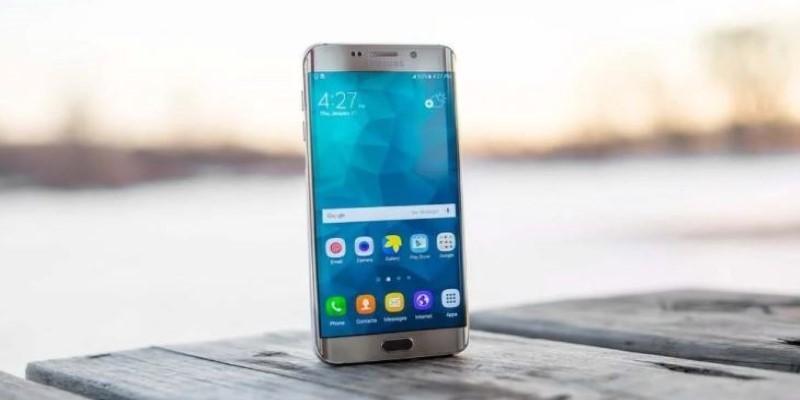
You unlock your phone to do one quick thing, and something small slows you down. The clock is easy to ignore, the apps you use most are not where your thumb expects, or the screen looks flat enough that you stop noticing what matters. Nothing is broken, but using it feels a little more annoying than it used to.
That shift often starts when a layout stays generic while your habits change. A setup that worked when the phone was new can feel crowded or dull a year later. The hard part is that many people respond by adding more apps, more widgets, or more visual noise, which can make simple tasks take longer.
Start with the part that bothers you most
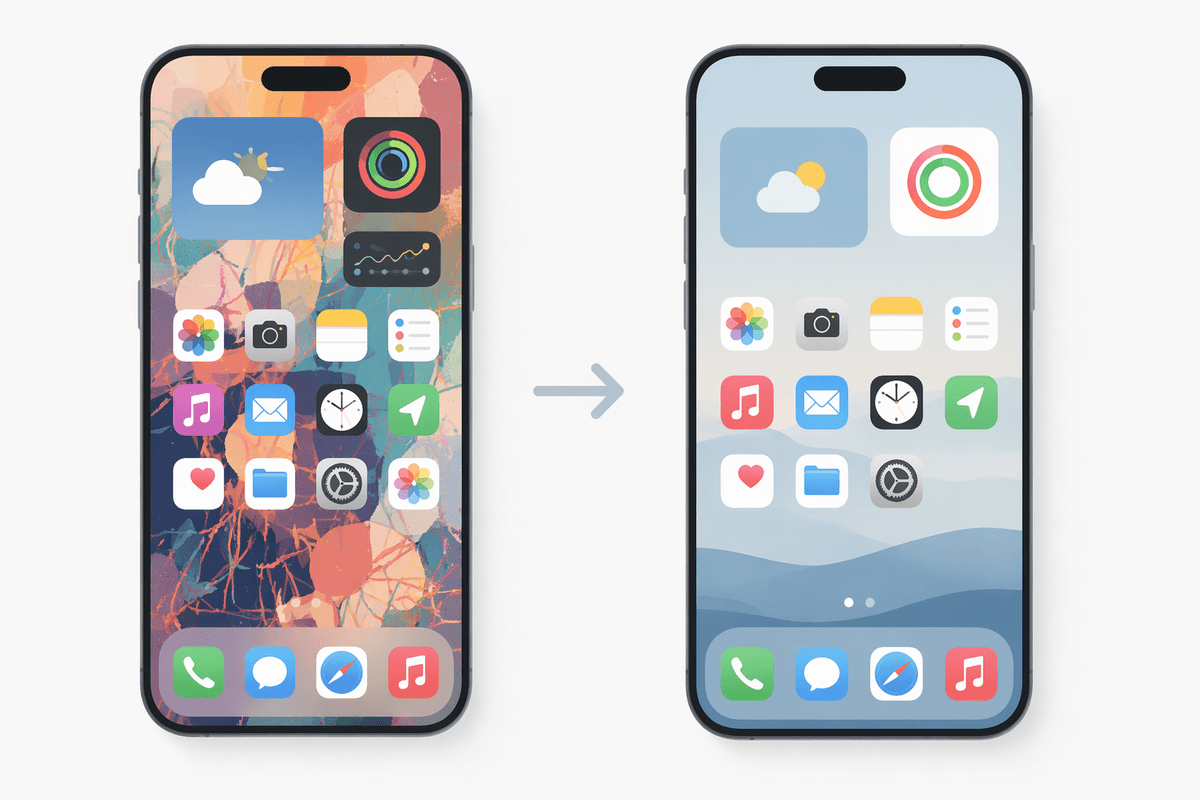
You usually already know where the irritation is. Maybe the dock holds apps you barely open, while the one you use every morning sits on a second screen. Maybe the wallpaper is so busy that folders and widgets blur into it. That first point of annoyance is the best place to begin, because one clear fix is easier to judge than a full redesign.
If unlocking the phone feels visually dull, change the background before anything else. If reaching common apps feels awkward, move only those icons first. If the screen looks crowded, remove one widget or one row of apps and use the phone for a day. Small changes show their value fast.
This also keeps you from making the usual mistake: changing five things at once, then not knowing which one helped and which one made the phone harder to use. Once one problem feels lighter, the next choice becomes much easier.
When a new wallpaper changes more than you expect
You notice it the moment the screen lights up: some backgrounds make everything easier to read, while others make the whole phone feel slightly off. A wallpaper does more than fill empty space. It sets contrast, pulls your eye toward or away from icons, and changes whether the screen feels calm or crowded.
If the image is busy, app labels and widget text start to compete with it. A photo with strong detail behind the clock can make even a clean layout feel messy. On the other hand, a darker or simpler background can make the same icons look more organized without moving a single app. That is why this is often the fastest visual fix.
There is one catch. A wallpaper that looks great in the picker can feel tiring after two days, especially if it is bright, high-contrast, or full of sharp patterns. Try something simple first, then check whether your icons still stand out enough to earn their space.
Could one widget replace three daily taps?
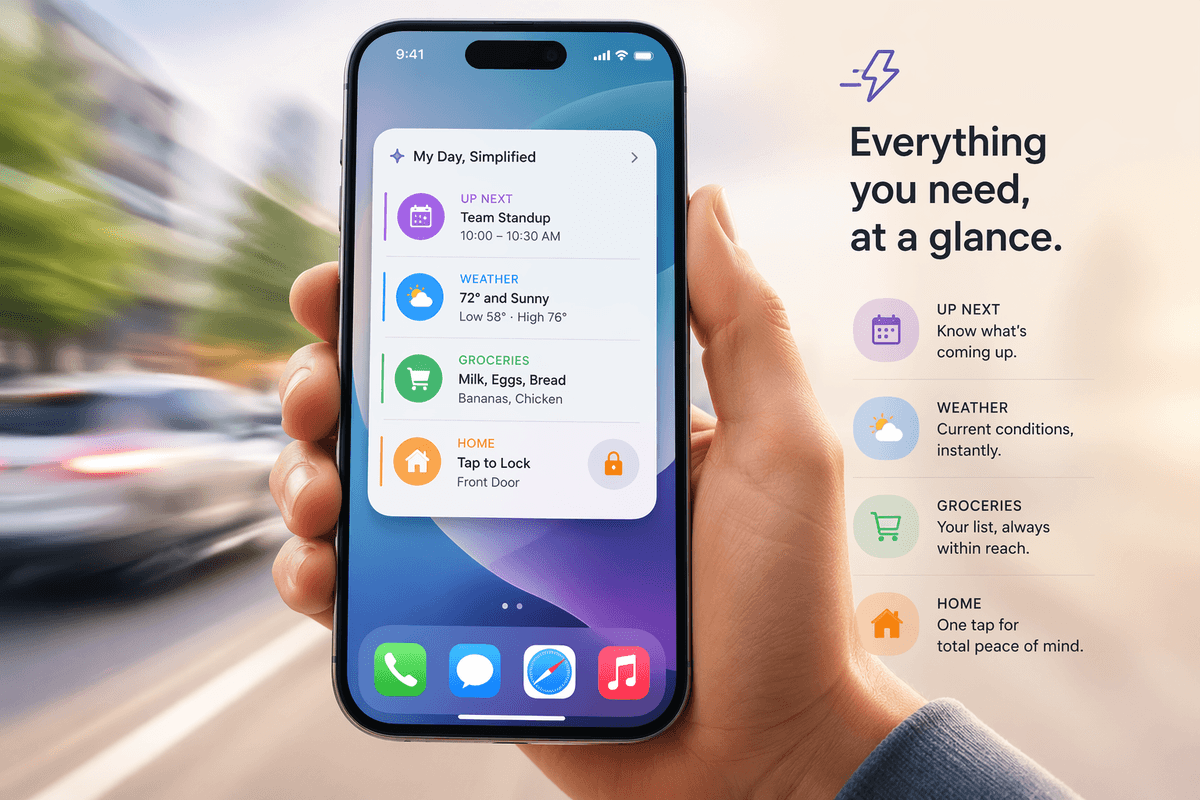
You feel the drag when the same small task keeps taking a few steps more than it should. You check the weather, open your calendar, or turn on a smart home device, and each time you move through the same chain of taps. That is where a single widget can earn its place. If one glance or one press replaces a repeated routine, the screen starts working better, not just looking different.
The useful test is simple: does this widget save time every day? A calendar agenda widget can show your next appointment without opening the app. A weather widget can stop the usual tap, wait, and back out cycle. A notes widget can keep a grocery list ready at the moment you need it.
But widgets are not free. Some take up too much room, update slowly, or add extra visual clutter if the design does not match the rest of the screen. Pick one that solves a real habit first. If it proves useful, the next layout choice becomes easier.
If the icons feel messy, what should change?
You see it when you unlock the phone: the apps are all there, but the screen still looks untidy. That usually happens when too many icon shapes, colors, or labels compete at once. A neat home screen does not require fewer apps in every case. It often needs clearer grouping. Put your most-used apps on the main screen, move occasional ones into one or two folders, and keep similar tools together so your eye knows where to land.
If the layout still feels scattered, change only one visual rule. Use a single icon pack, shorten the number of home screen apps, or remove labels if you already recognize the icons easily. Any one of those can make the screen feel calmer fast. Doing all three at once can backfire, especially if a new icon style makes common apps harder to spot at a glance.
This is also where some phones hit a limit. The default launcher may not let you resize the grid, rename folders cleanly, or change icon shape enough to matter. When that happens, the problem may be the tool, not your layout.
Still awkward to use? Try a lighter launcher
You run into it when the layout should work on paper but still feels clumsy in your hand. Maybe the search bar stays locked in place, the grid wastes space, or folders never open quite the way you want. At that point, changing icons or widgets will not fix much, because the frame holding everything is still rigid. A lighter launcher can help by giving you simpler control over the basics: grid size, gesture shortcuts, folder behavior, and how much visual clutter stays on screen.
This does not mean turning your phone into a project. A good launcher swap is usually low risk. Install one, copy your main screen, and live with it for a day or two. If a double-tap locks the screen, a swipe opens search, or five key apps fit your thumb better, the improvement shows up fast. If it feels worse, you can go back.
There are limits, though. Some launchers cost a few dollars for the best features. Others look clean at first but bury simple settings or break small habits you rely on, like notification dots or app suggestions. Pick one that removes obstacles, not one that adds a long setup list. Once the structure feels lighter, the final test is whether the whole screen now asks less of you.
A better home screen should feel easier, not busier
You notice the difference in small moments. You unlock the phone, reach with your thumb, and get what you need without scanning, squinting, or correcting a bad tap. That is the real standard. A better home screen is not the one with the most style, the most widgets, or the most clever setup. It is the one that asks less of you during an ordinary day.
Keep that test in mind when you change anything: if it looks better but slows you down, it is not an upgrade. A cleaner wallpaper, one useful widget, a calmer icon layout, or a simpler launcher is enough. Stop when the phone feels easier to use. That is usually the point where it starts to feel personal too.