Why Google Maps still feels slightly off by default
Most people open Google Maps when they are already in motion or about to be. They need one clear route, easy guidance, and just enough detail to avoid a wrong turn. What they get by default often works, but it also adds small irritations: a crowded screen, alerts that matter unevenly, route choices that do not always match daily habits, and background features that can pull more battery or save more history than they would choose on purpose.
That slight mismatch is why the app can feel off without feeling broken. The hard part is not that Google Maps is difficult. It is that the useful fixes are buried behind ordinary settings screens, and changing the wrong thing can make trips less convenient fast. A better setup starts with a few choices that clean up the map before navigation even begins.
When the map itself starts feeling too busy
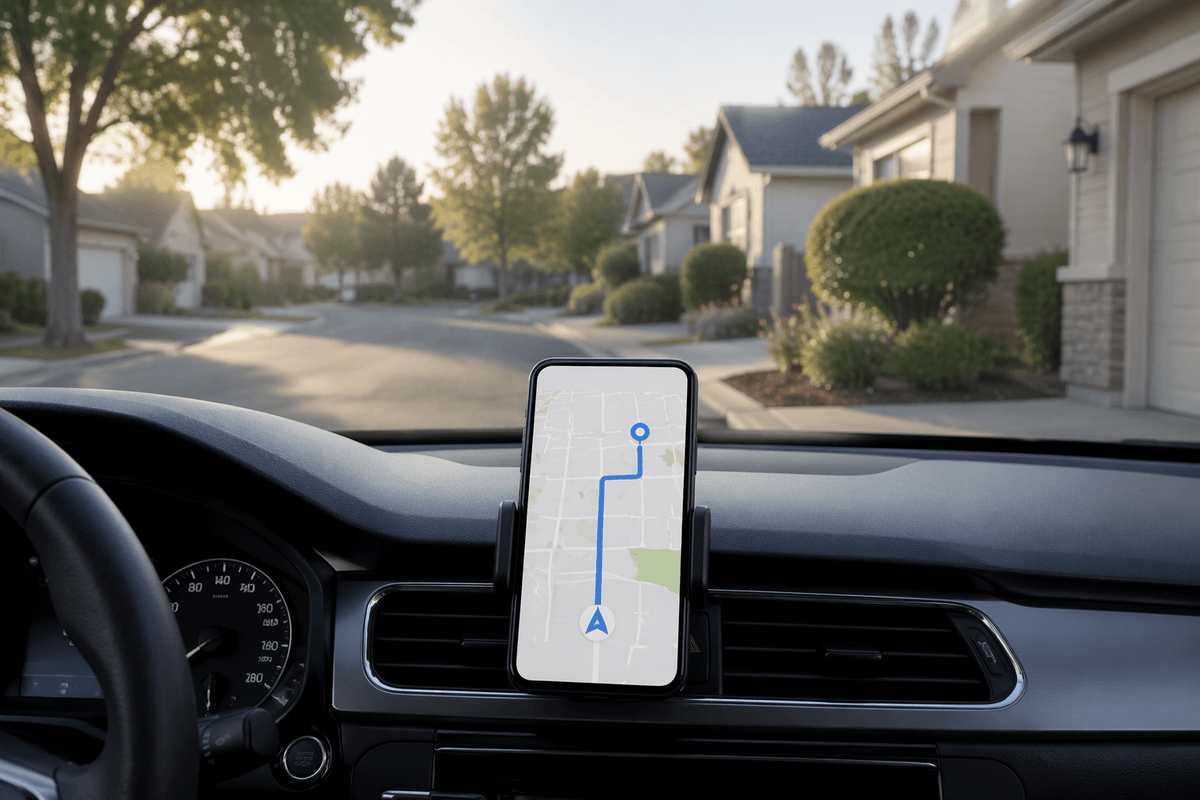
You feel this most when checking a route at a stoplight, in a parking lot, or before pulling out of a driveway. The screen shows useful things, but also too many things at once: restaurant pins, store labels, transit lines, photo markers, and little prompts that compete with the road you actually need to see. When that clutter stacks up, the route line matters less because it no longer stands apart.
One of the simplest fixes is to cut back what the base map shows before you start driving. If you mainly use Maps for everyday car trips, turn off layers you rarely need, keep the standard map view, and zoom in just enough that local labels stop flooding the screen. On smaller phones, this change helps more than people expect. It also means one less glance to sort signal from noise.
A cleaner map does have a limit: remove too much, and you may lose the landmark or side street name that helps confirm a turn. That is why the goal is not an empty screen. It is a screen where the route wins immediately, which makes voice guidance the next setting worth getting right.
Should navigation talk more, less, or differently?
You notice it when a calm drive suddenly comes with constant spoken updates, or when the one instruction you needed arrives too late. Voice guidance works best when it matches the kind of trip you are taking. If you know the area well, full spoken directions can feel like a running commentary. If you are in an unfamiliar part of town, the same voice can keep you from checking the screen every few seconds.
The useful change is not always more volume or less volume. It is picking the right level of interruption. For regular errands, muted guidance with alerts left on often gives enough notice without filling the car with repeat turn calls. For dense city driving, keeping voice on but lowering music or podcast volume during prompts helps more than turning guidance louder. Spoken directions also have a limit: if Bluetooth connects slowly, the first instruction can get clipped, which is exactly when a lane change matters most.
That makes route behavior just as important as route narration.
Your regular routes may need better built-in tradeoffs
You see this on the trips you barely think about anymore: work, school pickup, the grocery store, the gym. Google Maps often pushes the fastest route in that moment, but the fastest route is not always the one you actually want every day. If a saved route cuts through a crowded left turn, a school zone, or a tricky merge to save two minutes, that small gain can make the drive feel worse all week.
The better setup is to decide which delay you will accept on purpose. If tolls annoy you more than stop-and-go traffic, turn toll avoidance on. If highways make a short trip more stressful than they save time, avoid highways for that kind of drive instead of accepting the app’s default every time. For regular destinations, compare the alternate routes once, then let your choice become the habit. That removes a daily decision.
There is a catch. Broad avoidance settings can backfire when you travel farther than usual, because the route may become slower in ways that no longer feel worth it. The point is not to block every bad option. It is to make your usual trips match your usual preferences, which matters even more when signal gets weak.
Bad signal is where confidence drops fastest
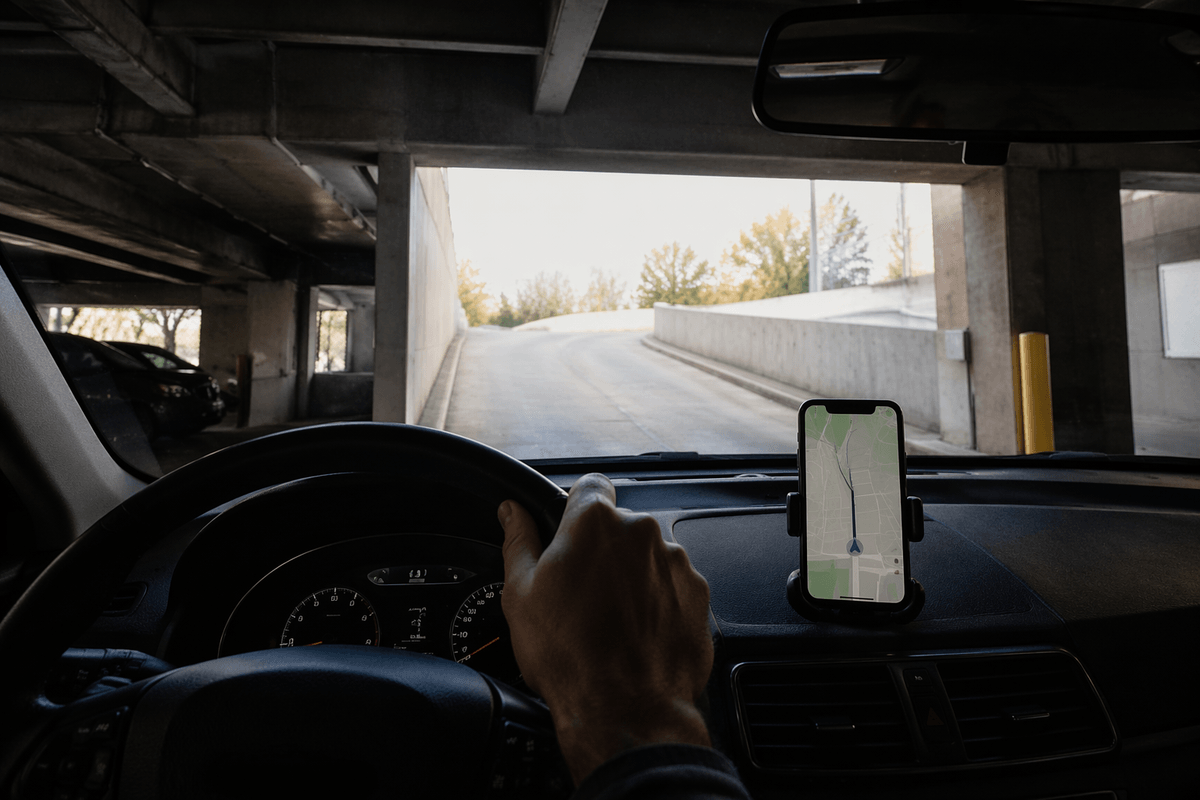
You feel this when leaving a garage, driving through a dead spot, or heading into an outer suburb where bars drop without warning. The route is still on screen, but your trust in it falls fast. A missed refresh, a delayed reroute, or a search result that never fully loads can make even a familiar trip feel less certain than it should.
The useful fix is partly about setup before the trip starts. Download offline maps for the areas you drive through often, especially if your commute includes tunnels, rural roads, or patchy cell coverage. That will not give you every live update, but it does keep the base map, many roads, and turn-by-turn guidance from disappearing at the worst time. It also helps when a parking garage blocks signal right as you need the exit route.
There is a limit here too. Offline maps age, and they take storage if you save large areas. Still, a map that keeps working imperfectly is far better than one that suddenly feels unsure, which brings up the setting many people hesitate over most.
How much location history do you actually want?
You run an errand, stop for gas, visit one more store, and later Google Maps is ready with a timeline of where you went. For some people, that is useful. It helps with remembering a place, finding a repeat stop, or pulling up a trip from last weekend. For others, it is more detail than they ever meant to save. The default problem is not just privacy in the abstract. It is that Maps can quietly keep a fuller record of ordinary days than many users would choose if asked clearly.
The practical fix is to decide whether location history should be on, auto-delete, or off. If you like the convenience of remembered places but do not need a long archive, auto-delete after a few months is often the clean middle option. If you rarely check your timeline, turning it off may cost very little. There is one real downside: some personalized suggestions and trip memories get less useful when less history is stored.
That is usually worth deciding on purpose, because the best setup is often the one that fades into the background.
A better Google Maps setup should feel quieter
A good Google Maps setup does not feel packed with features. It feels easier to trust on an ordinary Tuesday when you are leaving work, making one stop, and just want the trip to stay simple. If the map is cleaner, the voice interrupts at the right moments, your usual route matches your real tolerance for stress, offline areas are ready, and history is set on purpose, the app stops asking for extra attention.
That is the standard worth using: not maximum information, but minimum distraction for the kind of driving you actually do. Open the settings once, make the small choices that remove recurring annoyances, and judge the result by one test: do you need to think about the app less?