You just need a link—why is this taking so long?
You grab a file on your desktop, you need a share link, and somehow you’re juggling a browser tab, a sign-in prompt, and three different “Share” buttons that don’t mean the same thing. On Windows, the slow part usually isn’t the upload speed—it’s the setup around it: picking a service, landing in the right folder, avoiding accidental permissions, and finding the link that actually works for someone else.
The pain shows up in everyday moments: a client can’t open a “restricted” link, an attachment bounces for size, or you paste a link that points to the wrong account. The fix isn’t one magic tool; it’s matching the uploader to the situation and keeping the steps predictable.
That starts with a simple choice: are you sending this once, or building a repeat sharing loop?
First decision: one-off send or a repeat sharing loop
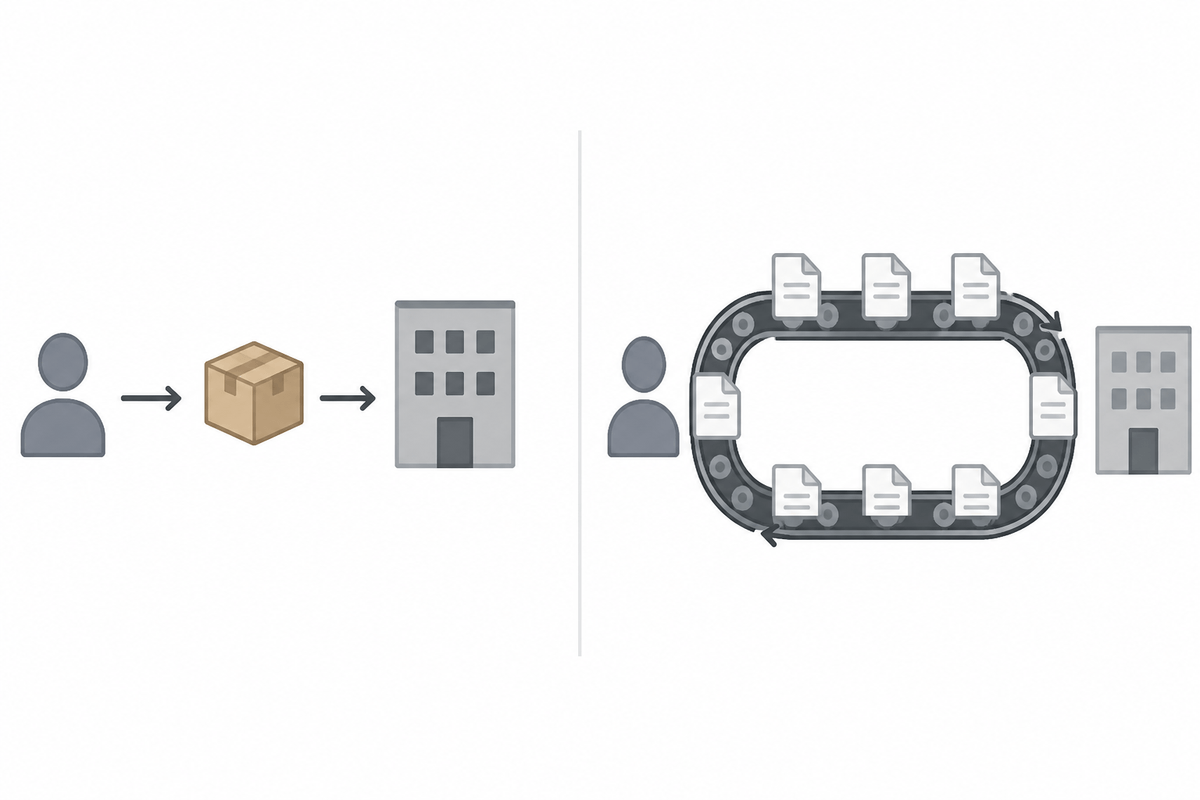
You’ll feel the difference the moment you go to name the link. If this is a one-off send—“here’s the draft, download it”—you want a tool that lets you drop a file, get a link, and forget it. Short retention, no folder housekeeping, and no need to invite someone into your cloud. In practice, that’s often a temporary upload, a direct-transfer service, or a “create link” action that doesn’t drag you into organizing anything.
If you’ll share again—weekly exports, ongoing design reviews, the same client for months—treat it like a loop. Put files in a stable folder, generate links from there, and reuse permissions so you’re not re-checking access every time. The downside is upkeep: rename rules, avoiding “final_v7,” and making sure you’re signed into the right work/personal account.
Once you’ve picked one-off versus loop, attachments become a clearer choice instead of a habit.
When email attachments still win, and when they don’t
You attach a file when you’re already writing the email and you want the receiver to do one thing: open it. For small, self-contained documents—an invoice PDF, a one-page brief, a screenshot—attachments still win because there’s no link to break, no permissions to mis-set, and no “which account are you signed into?” moment. It also helps when the recipient sits behind strict firewalls that block file-sharing domains but still allow standard email traffic.
They stop winning when the file will change, get forwarded, or needs a clear source of truth. If you send “v2” as another attachment, people keep replying on “v1” and you’ll burn time reconciling edits. Attachments also fail quietly: size caps vary by mailbox and gateway, and an email that “sent fine” can arrive stripped or quarantined. When you expect revisions or repeat access, a link with controlled permissions becomes the faster path.
If the file is large, friction shows up fast

You feel it when the file isn’t a PDF—it’s a 1.5 GB video export, a zipped project folder, or a PowerPoint loaded with images. The “quick” path suddenly turns into progress bars that reset, Wi‑Fi drops that force a restart, and upload pages that time out because the browser tab went to sleep. Even if your connection is fast, the tool has to handle long uploads without losing state, and it has to create a link that doesn’t choke when someone downloads from a different network.
Large files also surface hidden limits. Some services cap file size per upload, some compress or repackage, and some require the recipient to sign in before they can pull anything down. If you’re sending to a client, that sign-in step can turn into a support ticket.
At this size, the question stops being “what’s fastest?” and becomes “what won’t fail at 95%?” Privacy choices start to matter right there.
What level of privacy do you actually need today?
You’ll usually notice privacy when a link “works” for you but fails for the other person. You pick “Only people in my org,” paste the URL into a client email, and the client hits a sign-in wall. Or you choose “Anyone with the link,” and then hesitate because you’re not sure where that link might get forwarded. The fastest workflow is the one where your permission choice matches the real risk of the file.
For low-risk items—public-facing PDFs, a logo pack, a non-sensitive draft—an “anyone with link” share plus a short expiration is often the cleanest. If the file includes personal data, credentials, contract terms, or internal numbers, default to named recipients or org-only access, even if it adds a login step. A passworded link can help, but it creates its own hassle: you now have to send and store the password safely.
Also check the boring stuff: does the service show download logs, let you revoke access, and avoid copying files into a shared folder by accident? Those details decide whether “quick” stays quick the second time you share.
The quickest Windows workflows aren’t in the browser
You right-click a file, instinctively look for “Share,” and then end up in a browser anyway—logging in, hunting for the right folder, and waiting for an upload page to load. On Windows, the fastest flows usually come from the shell: File Explorer, the Office apps, or a sync client that can create a link without opening a tab. If the tool lives in the right-click menu or a “Copy link” button inside the folder, you skip the slowest part: getting to the upload screen.
OneDrive and SharePoint users feel this most: if the file is already in a synced folder, you can right-click → Share (or Copy link) and you’re done. Teams that use Google Drive for desktop get a similar win. Even Windows’ “Send to” and “Compressed (zipped) folder” can shave minutes when the real issue is bundling many small files before you upload.
The catch is account drift. If you have both personal and work sync clients, “quick” can generate a link from the wrong tenant, or a folder that isn’t syncing yet. The next decision is picking one default uploader and setting it up so links are predictable.
Pick your default uploader, then keep two backups ready
You’ll notice the time savings when you stop deciding every time. Pick one “default” uploader based on where you already work: OneDrive/SharePoint if you live in Microsoft 365, or Drive for desktop if your clients live in Google. Make one synced folder your landing zone (for example, “_Share Out”), and use the File Explorer right-click “Copy link” flow so every link comes from the same place and the same account.
Then keep two backups ready for when it breaks in real life: a one-off transfer tool for huge files or external recipients, and plain email attachments for small, low-risk docs. The cost is upkeep—sign-ins expire, sync pauses, and storage fills—so set a monthly reminder to confirm you’re still linking from the right account.