What counts as a “hidden sensor” on Pixel?
You usually notice the camera and mic because you choose to use them. The “hidden sensors” are the quieter parts that still measure something when your Pixel is just being a phone—sitting on a desk, riding in a pocket, or waking up for a notification.
On most Pixels, that includes motion sensors (accelerometer, gyroscope), orientation/compass, proximity and ambient light (for screen behavior), location inputs (GPS plus Wi‑Fi and Bluetooth scanning), and radios that report nearby networks (cellular, Wi‑Fi, Bluetooth, NFC, ultra‑wideband on some models). Biometrics can add their own hardware (fingerprint, face sensors depending on model).
The catch: many of these are tied to convenience features by default, so cutting them back can break things like fast unlock, reliable auto‑rotate, or “nearby” discovery—sometimes without a single obvious permission prompt.
When your phone unlocks, what just got measured?
You tap the screen, lift the phone, and it opens. In that moment, your Pixel may have checked a biometric signal (fingerprint, face, or both depending on model), plus a few “support” readings that make the unlock feel instant.
Fingerprint unlock measures a live pattern and compares it to a template stored in the phone’s secure hardware; the raw image isn’t supposed to leave the device. Face unlock, where available, can also use depth or infrared sensors in addition to the front camera, then does a similar on-device match. Around that, the proximity sensor and ambient light sensor help decide whether the screen should brighten, and motion sensors can detect a lift or tilt so the phone knows you’re trying to use it.
The real-world downside shows up when you tighten things: turning off Lift to check phone or Tap to check phone reduces motion-triggered wakeups, but it can make unlock feel slower because you’ll rely on deliberate touches instead. The same pattern repeats when the screen wakes up at all.
The screen wakes up—did you trigger motion or touch?

You set your Pixel on a table and the screen lights up anyway, or you pull it from a pocket and it wakes before you press anything. That usually comes from a mix of “touch” signals (the touchscreen digitizer noticing a tap) and “motion” signals (accelerometer/gyroscope noticing a lift, tilt, or small jolt). Add the proximity sensor and the phone can avoid waking the screen when it’s pressed against fabric; add the ambient light sensor and it can pick a brightness that won’t blind you in a dark room.
If you want to map cause to effect, watch for patterns: repeated wakes while walking often point to Lift to check phone, while wakes on a desk often come from Tap to check phone or a notification pulse. The practical hassle is that these switches don’t just save battery—they can make it easier to miss quick glances, and you may need an extra press of the power button to confirm what’s going on.
Once the screen is awake, the next question is whether the phone also started listening for nearby devices and networks.
Walking, driving, or pocketing it: motion sensors at work
You head out for a walk and, without thinking about it, your Pixel starts building a picture of movement: steps, direction changes, and whether the phone is steady or bouncing in a pocket. That comes mostly from the accelerometer and gyroscope, sometimes helped by the compass to keep orientation sane. It’s how auto-rotate stays believable, how fitness apps count steps even with the screen off, and how the phone can decide a “lift” is intentional versus random motion.
Driving changes the pattern. Long, smooth acceleration, sharp turns, and higher speeds can push apps to treat motion as travel, especially if location is also available. Even without opening Maps, features like “while you’re walking” versus “in a vehicle” can be inferred when motion sensors run in the background for activity detection.
The real constraint is that you can’t always “turn off motion” cleanly. You can reduce wake gestures, but step counting, some safety features, and a few smart behaviors may stop working or get less accurate—then you’re back to manual checks and more screen-on time.
Maps, Find My Device, and “nearby”: which radios matter?
You open Maps for a quick errand and it “snaps” to where you are faster than GPS alone could. That’s usually the phone blending satellite location with radio clues: nearby Wi‑Fi networks, Bluetooth beacons, and cell towers. Even with Wi‑Fi turned off for connectivity, Wi‑Fi scanning can still help location if you’ve allowed it, and Bluetooth scanning can do the same for “nearby” features like device discovery and fast pairing.
Find My Device leans on the same stack, but with different priorities. If precise GPS is available, it uses it; if you’re indoors, the phone may fall back to Wi‑Fi and Bluetooth signals to narrow things down. “Nearby” sharing and device finding can also involve ultra‑wideband on some Pixel models, and NFC matters for tap-to-pair and payments, not mapping.
The practical snag is that these controls are spread out. Turning off Location can break turn-by-turn and weaken device finding, but leaving it on while disabling Wi‑Fi/Bluetooth scanning can make location slower and less accurate—especially in malls, apartments, and transit stations.
Safety and emergencies: what can be sensed without you noticing?
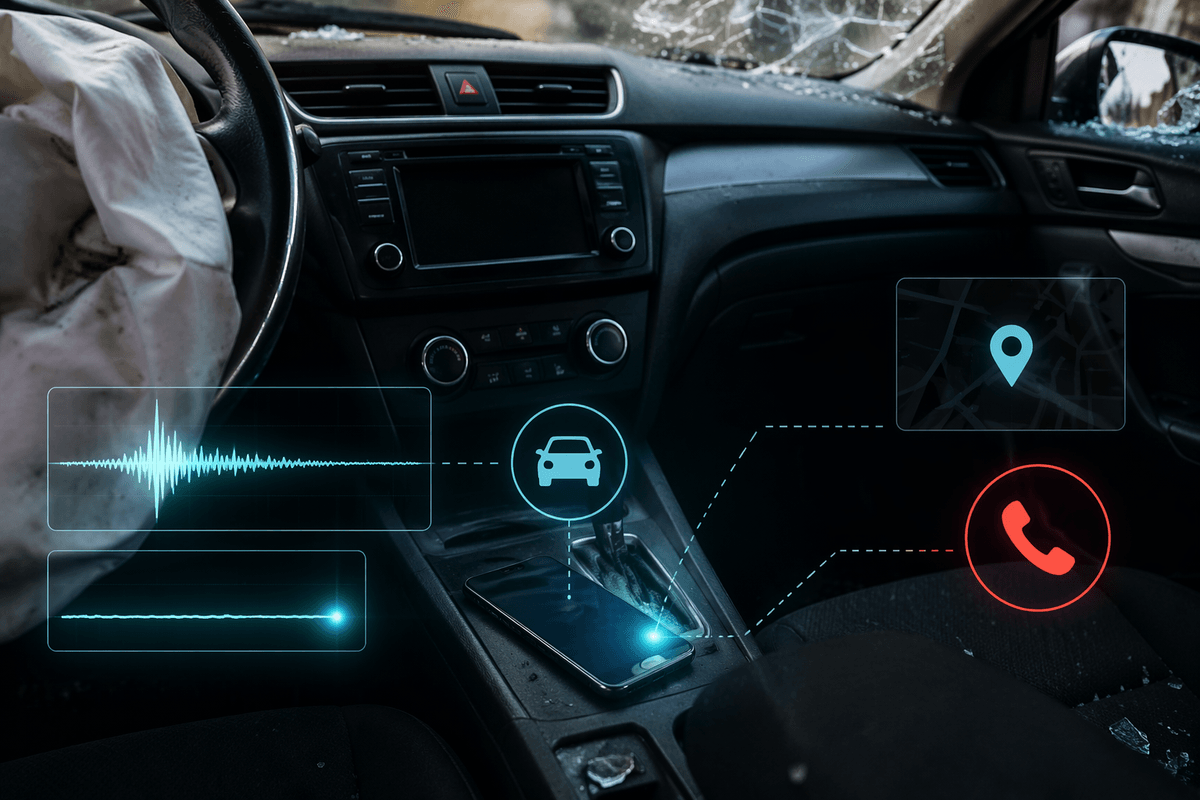
You slip your Pixel into a pocket and forget about it—until it decides something unusual just happened. Safety features often start with motion patterns: a hard stop, a sharp impact, or sudden stillness. That’s accelerometer and gyroscope work, sometimes combined with rough speed changes. If the phone thinks it detected a car crash or a fall, it may also pull in location to attach “where” to the event, then use cellular (or Wi‑Fi calling, if set up) to place a call or send alerts.
There are quieter triggers, too. Emergency SOS is mostly button presses, but the follow-through can include location sharing with contacts. “Car crash detection” and similar features may run background checks for motion that matches a crash profile, even when you aren’t using the phone. The real-world cost is false alarms and extra background activity; if you disable the feature to avoid that, you also lose the one time it would have mattered.
Before changing anything, it helps to know whether your concern is the motion sensing, the location attachment, or the outbound communication.
Tighten behavior without breaking the features you use
You change a few privacy settings, and suddenly something feels “off”: Maps takes longer to lock, Nearby Share stops seeing devices, or the screen won’t wake the way you expect. The cleanest approach is to target the behavior, not the hardware. Start with gesture wake (Lift to check, Tap to check) and app-level permissions, since those usually cut background motion use without touching navigation, payments, or calls.
Then separate “Location” from “Wi‑Fi/Bluetooth scanning.” If you want less passive location help indoors, disable scanning while keeping Wi‑Fi and Bluetooth available when you choose. Expect slower fixes in malls or apartments. If safety features matter, leave crash/fall detection on and instead limit which apps can access location “all the time.”