Why your current desktop feels slower than your brain
You hit a key, a window animates, a panel redraws, a notification slides in—and your thought is already on the next step. Traditional desktops aren’t “slow” in a single place; they spend time coordinating lots of small promises: compositing effects, background services, desktop search, extension frameworks, and a layout model built around the mouse. On a modern CPU this can still feel laggy because the delays are uneven, so you notice them.
A tiling window manager cuts out most of that coordination. Windows appear where the layout says they go, focus moves instantly, and the keyboard stops fighting the UI. The catch is real: you often trade convenience for control. If you rely on polished settings panels, per-app integration, or “it just works” Bluetooth and display handling, you may have to rebuild pieces yourself—one decision at a time.
That’s why the first choice isn’t which project looks coolest, but what kind of speed you’re actually buying.
First decision: speed-at-all-costs or smoother onboarding?
You install a tiler, reboot, and the first hour tells you which camp you’re in. If you want speed-at-all-costs, you’ll tolerate a bare screen, a config file, and a few missing “desktop” conveniences because every extra layer can add jitter. That path usually means a smaller core, fewer moving parts, and faster feedback when you mash focus and workspace keys. The price shows up fast: you’ll wire up your own status bar, screenshot flow, screen locking, and sometimes even sane defaults for displays.
If you want smoother onboarding, you’ll accept a bit more structure in exchange for a setup that behaves like a desktop on day one. Think guided defaults, cohesive docs, and fewer “why doesn’t this keybind work?” moments. You still get tiling speed, just with more guardrails—and sometimes more opinionated choices you’ll later undo. Pick your tolerance now, because it decides whether “fast” means minimal latency or minimal time-to-usable.
That choice also tees up a second question: whether your daily stack needs Wayland right now.
Wayland reality check: do you need it today?
You plug in a second monitor, start a screenshare, and launch an Electron app that insists on GPU acceleration. That’s when “Wayland vs X11” stops being ideology and turns into a checklist. If your day involves fractional scaling on a HiDPI laptop, mixed-refresh monitors, or touchpad gestures you actually use, Wayland tends to behave better. If you live in remote desktop tools, niche screen-recorders, or older color-calibration workflows, X11 can still be the calmer choice because more of that ecosystem was built around it.
Wayland also changes how “simple” tasks work. Global hotkeys, injecting input, and window rules often move from one universal mechanism to compositor-specific settings. That can be fine—until you try to bolt on a password manager overlay, a push-to-talk key, or an automation script that used to target X11 and now needs a new path.
The practical move is to decide what must work on day one: screensharing, scaling, and your must-have apps. That list will quietly narrow your tiler options before you ever argue about aesthetics.
How much configuration do you actually want to own?
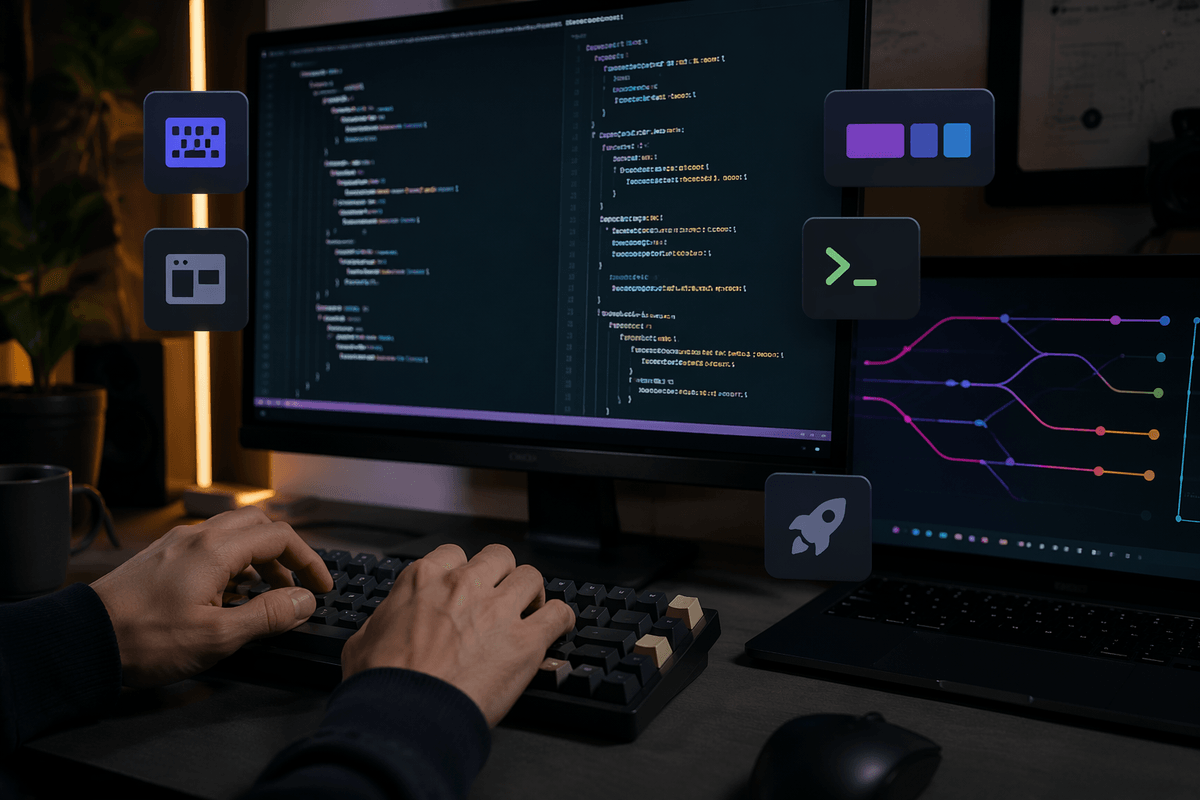
You pick a tiler, open the docs, and immediately face a fork: do you want a setup you can “live in” this weekend, or a setup you can keep refining for months? Some window managers give you sane defaults and a clear place to change things. Others hand you a minimal starting point and expect you to assemble your own desktop from small tools. Both can be fast; the difference is how much of that speed you maintain yourself.
If you like owning the details, config-as-code is a feature. You’ll version keybinds, window rules, bar modules, and app launchers like any other dotfiles. If you just want to work, that same surface area becomes overhead: a font update breaks your bar, a laptop dock changes output names, and a “quick tweak” turns into an hour of debugging. Decide up front whether you want customization to be your hobby or your one-time cost.
With that in mind, the real shortlist starts with the annoyances you refuse to keep living with.
Shortlist by feel: which workflow annoyances must vanish?
You usually notice the right tiler when a small irritation disappears: focus follows your intent, windows land where you expect, and you stop “fixing” layout all day. Write down the three moments that break your pace. Common ones: losing the focused window after a launch, juggling floating dialogs, fighting multi-monitor workspaces, or wasting time hunting for the right app switcher result.
Then map each annoyance to a requirement. If you constantly reshuffle layouts, you want simple manual tiling controls and predictable split behavior. If you live in terminals and editors, you want tight keybinds and fast workspace switching more than fancy effects. If you present or screenshare a lot, you want frictionless floating and a dead-simple “make this window behave” rule system.
Be honest about the cost: every “must vanish” can mean more config, more glue scripts, and more things to maintain after updates. Once you have the list, you’re ready to test-drive only what can pass it in an hour.
Three quick test drives to confirm your top picks
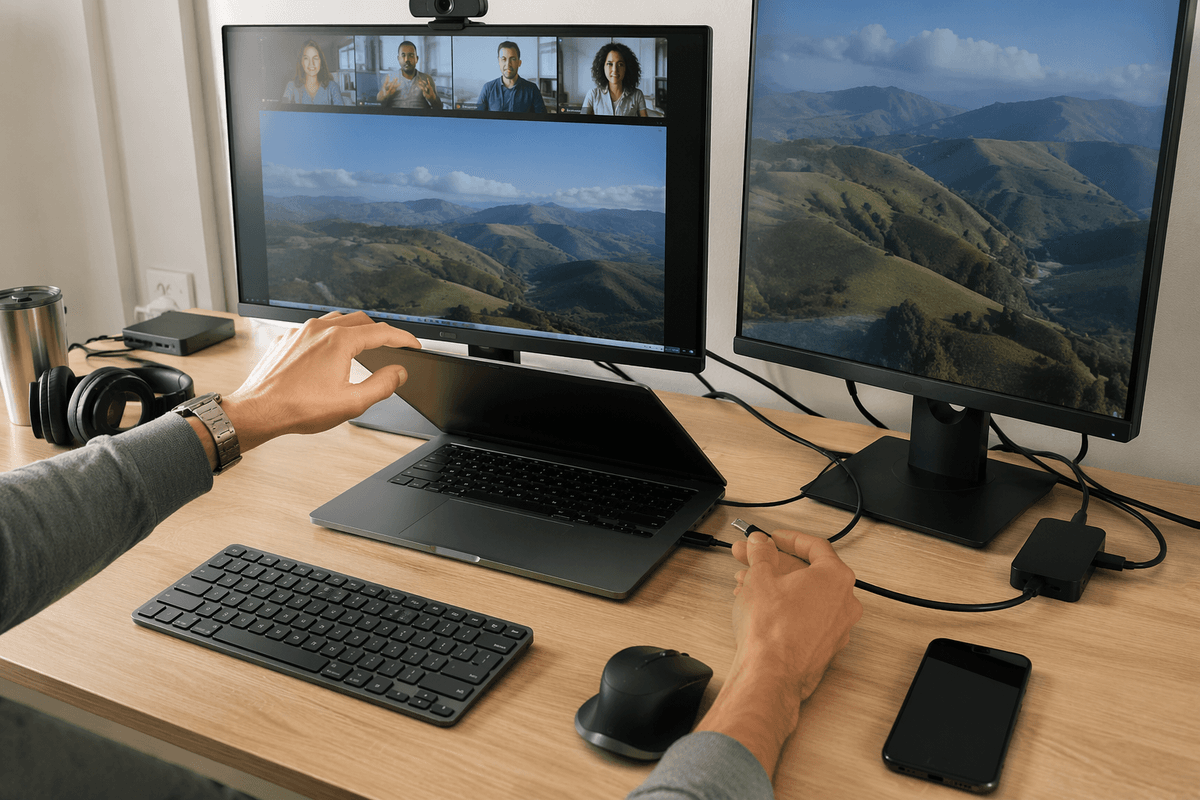
You’ve got two or three contenders. Don’t “install and pray.” Give each one a tight, repeatable test that matches how you actually work.
Test drive one: the one-hour workflow loop. Start a timer, then do a normal slice of work: open your editor, two terminals, a browser, and whatever chat or mail you keep around. If basic actions feel sticky—finding focus, splitting a pane, moving a window between monitors—don’t rationalize it. That friction becomes muscle memory in the worst way.
Test drive two: the rule and exception check. Make a dialog float, pin a window to a workspace, and set one app rule (e.g., “Slack always on monitor 2”). If that takes 3 lines of config in one tiler and 30 minutes of searching in another, you just learned what “maintainable” means for you.
Test drive three: the reality stack. Screenshare, suspend/resume, hot-plug a display, and test your input method. The winner is the one that survives a boring Tuesday without you babysitting it.
Your 2–3 best matches—and what to try next
If you want the fastest, most “I control everything” setup, shortlist i3 (X11) or Sway (Wayland). If you want that same mental model but more built-in structure, add Hyprland (Wayland) for modern visuals and flexible behavior—just expect more churn and occasional breakage after updates. If you want deep customization without rewriting your whole desktop, consider Qtile (Python config) or AwesomeWM (Lua), but budget time for tuning.
Pick two and run them for two full workdays. Track three things: how often you touch the mouse, how often you edit config, and what breaks when you dock, screenshare, or suspend. Keep the one that needs the least “babysitting” to stay fast.