Why traveling with an iPad needs a different safety plan
An iPad is a travel tool, not just a screen. You pull it out for boarding passes, hotel confirmations, maps, translation, and messages—often in crowded lines, cramped seats, and unfamiliar places. That changes the risk: the moments you need it most are the moments you’re most distracted, and distractions lead to drops, forgotten devices, and easy grab-and-go theft.
Travel also pushes your iPad into conditions your home routine rarely does: pressure in a stuffed backpack, spills on tray tables, charging from unknown outlets, and Wi‑Fi you don’t control. If the iPad goes missing, it’s not only the replacement cost—it’s the access to your email, saved passwords, payment apps, and the trip itself. A simple, travel-specific plan lowers the odds of trouble and limits the damage if something still happens.
Set up your iPad before you leave home
The easiest wins happen before you’re juggling bags and boarding calls. Start with a fresh backup (iCloud or a computer) so a lost iPad doesn’t erase photos, notes, or work. Turn on Find My for the iPad, and make sure you can sign in to your Apple Account without the device—confirm your trusted phone number and update account recovery info.
Lock down the basics: use a strong passcode (not 4 digits), enable Face ID/Touch ID, and set Auto-Lock to a short time so the screen isn’t sitting open on a café table. If you use travel apps with payments or logins, sign in at home and check you have offline access where it matters (download maps, tickets, and entertainment). This setup takes 20 minutes, but the cost is real: it may trigger re-logins and two-factor prompts while you’re packing, so do it a day or two before you leave.
Tip 1: Pack for drops, pressure, and spill surprises
Most iPads don’t get damaged in dramatic accidents—they get damaged in ordinary travel moments: a backpack set down hard, a seat-back pocket squeeze, a tray table bump, or a water bottle that “never leaks.” Start with a case that has real edge and corner protection, then add a screen protector. It’s a small cost compared to a screen repair, and it buys you margin when your hands are full.
Pack the iPad where it won’t flex. In a backpack, use a dedicated sleeve or a rigid compartment and keep it flat against the back panel, not wedged between a charger brick and a hardbound book. Avoid overstuffing the bag; pressure and twisting are what crack screens. On planes and trains, skip the seat-back pocket—people slam seats and kick bags. For spills, treat your bag like it’s one spill away from disaster: separate liquids, keep the iPad in a zip pouch or sleeve, and bring a small microfiber cloth so you’re not wiping grit across the glass.
Tip 2: Reduce theft risk without making yourself miserable
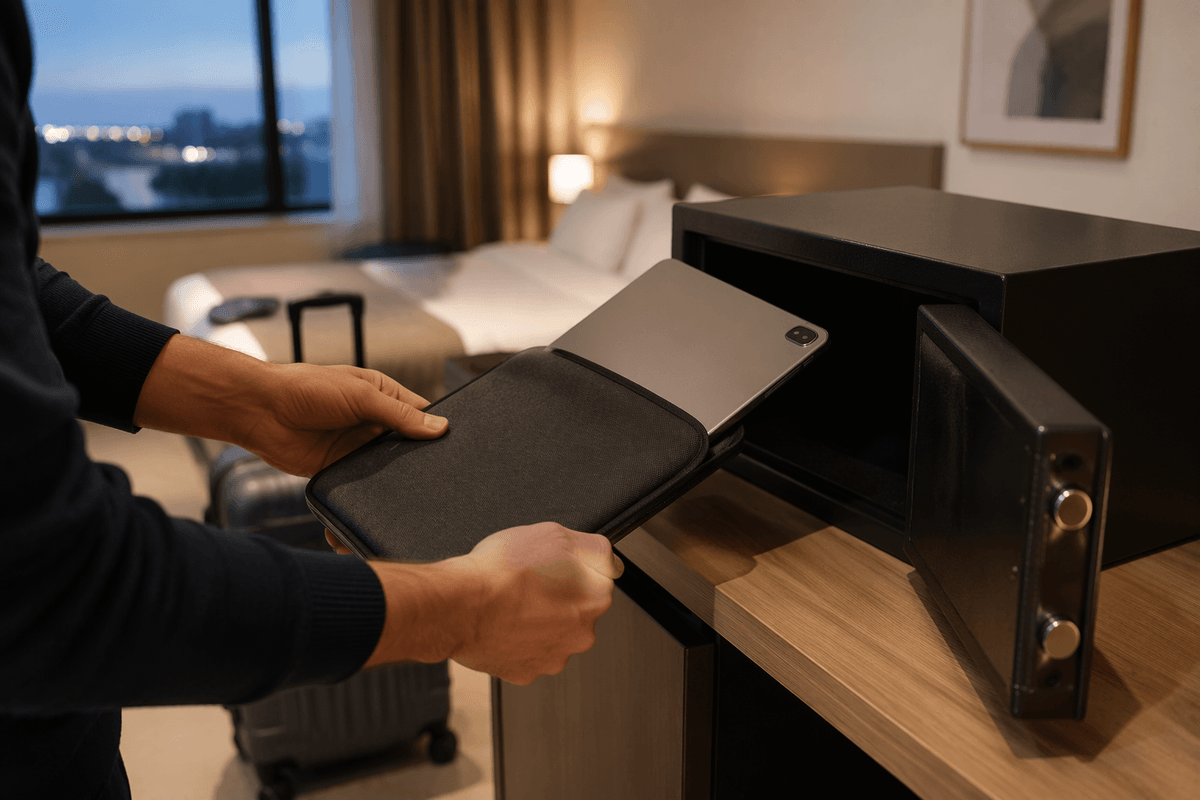
Theft usually happens when your iPad is visible and you’re focused on something else: a check-in kiosk, a luggage carousel, a café order. Aim for “out of sight, quick access.” Use a plain sleeve instead of a logo-heavy iPad case, and avoid carrying it loose under your arm. When you set it down, make it a habit to keep one point of contact—hand on it, strap through it, or tucked under a forearm—especially in lines and on public transit.
In hotels and coworking spaces, don’t assume a room is private just because the door closes. If there’s a safe, use it; if not, keep the iPad with you or lock it inside your bag and take the bag along. In airports, don’t let it ride alone in a tray while you’re dealing with shoes and a laptop; stage your items so the iPad is the last thing you place down and the first thing you pick up. A small inconvenience beats replacing the device mid-trip.
Tip 3: Keep your accounts and data safe on shared networks
You’ll probably connect to Wi‑Fi you don’t control—hotel networks, airport hotspots, conference guest Wi‑Fi. The simplest rule is to assume anything “open” can be watched. If you can, use your phone’s personal hotspot for banking, email, and anything tied to payments or identity. If you must use shared Wi‑Fi, stick to apps and sites you trust, and avoid typing passwords into random captive portals beyond what’s required to get online.
Also disable auto-join for public networks so your iPad doesn’t silently reconnect later. Finally, keep “Ask to Join Networks” on, and turn off AirDrop receiving (or set it to Contacts Only) so you’re not discoverable in crowded places.
One more habit that prevents real damage: don’t approve sign-in prompts while distracted. If you get a two-factor request you weren’t expecting, deny it and change that password when you’re on a trusted connection.
Tip 4: Power, charging, and accessories that prevent problems
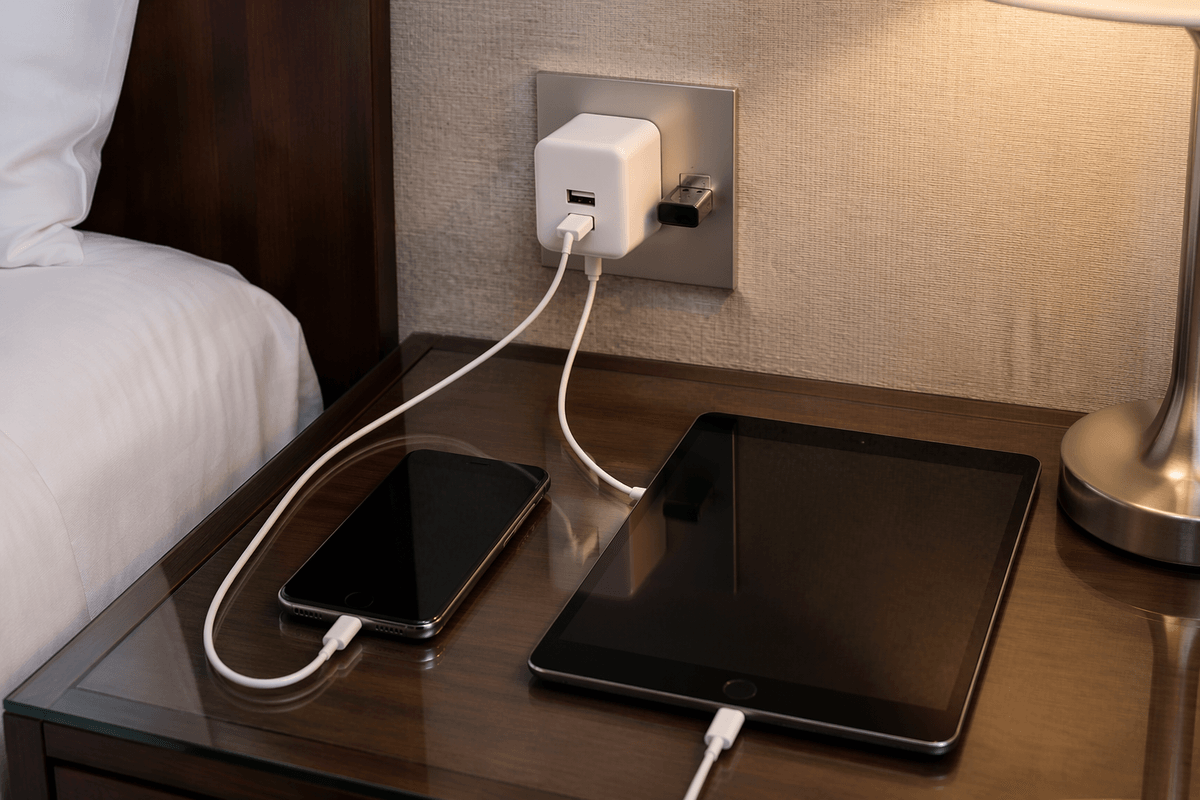
You notice power problems first when the iPad becomes the trip—your boarding pass won’t load, your ride-share app won’t open, and your charger is buried in a bag. Start with one reliable wall charger you trust and a single cable you’ve tested, then add a short spare cable as cheap insurance. If your iPad uses USB‑C, a compact 30W–45W charger is a good all-around choice; it charges faster and can often top up a phone too.
A power bank helps most when outlets are crowded or the seat plug is loose. Pick one from a reputable brand and check airline rules before you pack it; capacity limits are common, and some airlines want batteries in your carry-on. For airports and hotels, skip unknown “free” charging cables and public USB ports when you can—use your own wall plug, or a USB data blocker if you must use a shared port.
Finally, bring one small organizer pouch. The practical benefit isn’t tidiness; it’s not losing adapters, SIM tools, and cables at the bottom of your bag when you’re tired.
A quick travel checklist for peace of mind on the road
Before you walk out the door: confirm your iPad has a recent backup, Find My is on, and you can sign in to your Apple Account without the iPad. Use a strong passcode, Face ID/Touch ID, and a short Auto-Lock. Download what you’ll need offline (tickets, maps, shows), and take two minutes to note your iPad’s serial number somewhere safe.
In your bag: protective case, screen protector, microfiber cloth, tested wall charger, primary cable plus a short spare, and a small organizer pouch. Add a reputable power bank if you’ll be away from outlets, but keep it in your carry-on and expect airline capacity limits.
On the move: keep the iPad out of sight when not in use, avoid seat-back pockets, don’t auto-join public Wi‑Fi, and don’t approve unexpected sign-in prompts.